0:00
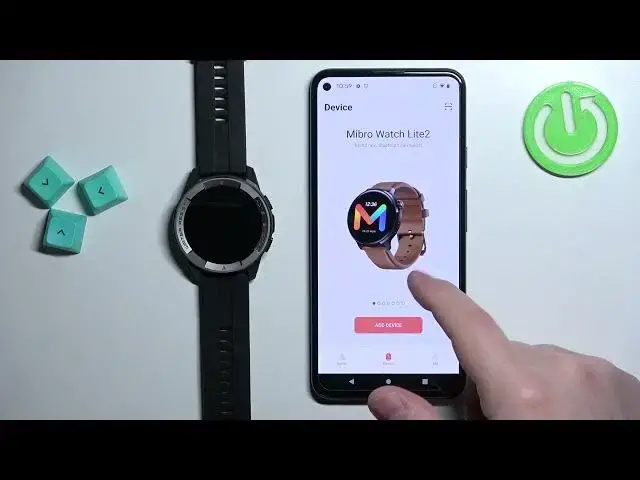
Welcome! In front of me I have Mibro Watch X1 and I'm gonna show you how to pair this watch with the Android phone
0:11
First thing you will need to do is to turn on the watch and you can turn it on by pressing and holding the home button
0:17
Keep holding it until the watch turns on and then you can release it
0:22
And after you turn on the watch you may see the list of languages on the screen
0:26
You can scroll through this list by swiping up and down on the screen
0:31
Now find the language you would like to use on your watch, tap on it to select it and then tap on the checkmark to confirm
0:39
And after you select the language you should see the QR code
0:43
This means we need to download and install the Mibro FIT application on our phone
0:49
So make sure you have the internet connection and Bluetooth enabled on your phone
0:54
Once you do, open the Play Store. In the App Store tap on Search, type in Mibro FIT and tap on Search
1:10
You should see this application Mibro FIT with this icon. Tap on the Install button to download and install it
1:17
And once the application is done installing you can tap on the Open button to open it
1:25
In the app tap on Agree, then IC and here we need to login into an account
1:32
If you don't have an account you can create a new one by tapping on this button right here, Register Now
1:38
You can also use the third party account like Google, Facebook, WeChat and stuff like that
1:44
I already have an account so I'm going to tap right here to agree to the Terms of Use
1:50
Check the box, then tap right here, enter the email address and password
2:00
And then we can tap on the Login button to log in
2:04
I must have entered the password wrong so give me a second
2:09
OK, this time it worked. And after you login into an account tap on IC
2:16
You can allow the permission for the location, allow the permission to connect the devices basically
2:25
You can allow or deny the permission for the photos, videos, music and audio
2:33
And once you have the permission you can log in. And once you've done with the permission you should see the homepage of the application
2:41
Now tap on the device icon right here, tap on Add, no nevermind
2:46
Scroll through the list of devices by swiping left and right right here
2:51
Find the Mibro Watch X1, then tap on Add Device. Oh, OK nevermind
2:58
We could have just tap on Add Device and then scroll through the list, tap on Mibro Watch X1
3:06
Wait until the app detects your watch, tap on it. Tap on Carry Out, tap on IC
3:20
Here you can tap on Go To Settings to enable the settings like notification access and stuff like that
3:26
If you want to receive the notifications from your phone on your watch
3:31
And you can also tap on Cancel to skip it for now. If you tap on Go To Settings, as you can see here we have background protection
3:39
You can tap on Go To Settings and it should redirect you to the correct page
3:45
But for some reason it doesn't so I'm just gonna go back
3:49
And once you're done with the settings you should see the device page
3:53
And on this page you should see Mibro Watch X1. And of course it should say Connected right here
4:02
OK. You can also wake up the screen on your watch and you will see that you can use it now
4:09
And that's how you pair this watch with the Android phone. Thank you for watching
4:14
If you found this video helpful, please consider subscribing to our channel and leaving a like on the video