0:00
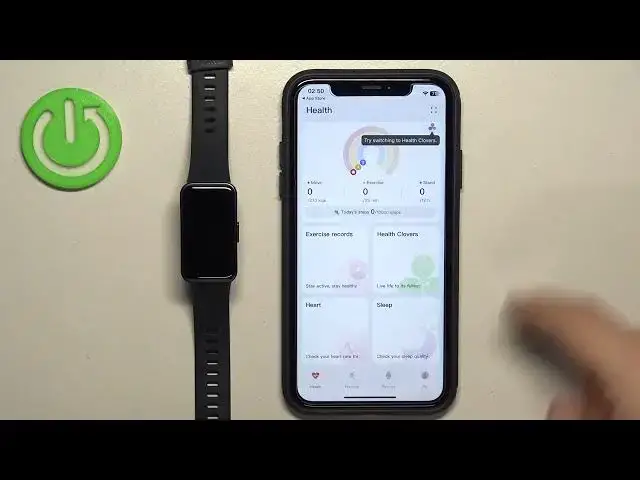
Welcome! In front of me I have Huawei Band 8 and I'm gonna show you how to pair this smartband with the iPhone
0:12
First thing you will need to do is to turn on your smartband and you can turn it on by
0:15
pressing and holding the side button. And after the smartband turns on you should see the list
0:21
of languages on the screen. You can scroll through this list by swiping on the screen
0:26
Now find the language you would like to use on your smartband, tap on it to select it. And after
0:30
you select the language you will need to download and install the Huawei Health application on your
0:35
iPhone. So open the App Store on your iPhone. Let me actually remove this. Open the App Store
0:46
Okay. In the App Store tap on the search icon then tap on Huawei Health
0:56
And scroll through the list. Find the Huawei Health application with this icon
1:02
Tap on it to select it and then tap on the Get button to download and install it
1:12
Okay. After the application is done installing you can tap on Open button to open it
1:19
And once the application opens you may see a couple of pop-ups about permissions. For example
1:24
notification permission. This one is not required so you can deny it but if you want to receive the
1:29
notifications from your iPhone on your smartband it's recommended to allow this permission. So
1:35
allow or deny the permission. Then tap on Next. Agree. And you should see the Health page in the
1:41
app. Now tap on Devices. Tap on Add. And if you need to log in into a Huawei ID account do so
1:50
If you don't have an account tap on Register button right here. I already have one so I'm gonna
1:55
log in. After you log in tap on Next. Agree. If you see this page tap on Let's go. And here you can
2:10
allow the application to access health data. And if you want to for example track your heart rate
2:18
resting heart rate and stuff like that you need to enable the option to write and read the data
2:24
So enable the things you want and then tap on Allow. I'm just gonna tap on Turn on all and tap
2:30
on Allow. Now let's tap on Devices again. Tap on Add. Tap on OK. Tap on Add again. The app will
2:40
start looking for the nearby devices and it should detect our Huawei Band 8. Once it does tap on the
2:47
button next to it. Then tap on the checkmark. Tap on Pair. Allow or deny the permission for
3:01
notifications. Allow or deny permission for the location. And allow or deny the permission for the
3:10
contacts. Here you can check the box to download updates automatically over Wi-Fi if you want to
3:18
And then tap on Done. And at this point you should see the Huawei Band 8 device page. And if you wake
3:25
up the screen on your smartband it should be ready to use which means that the devices are paired
3:30
together. And that's how you pair this smartband with the iPhone. Thank you for watching. If you
3:36
found this video helpful please consider subscribing to our channel and leaving a like on the video