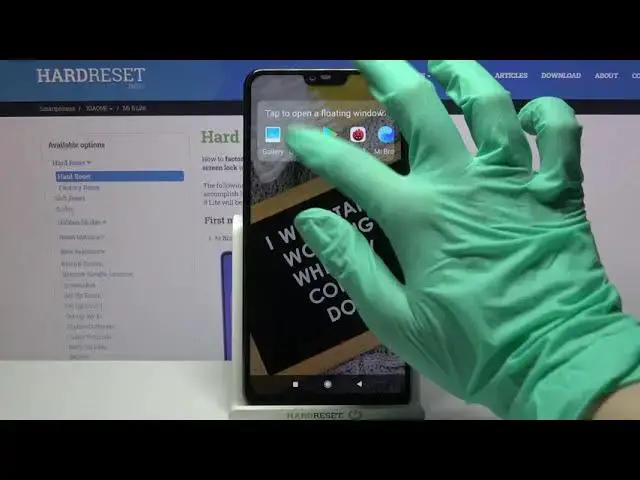

How to Open Apps in Pop Up View on XIAOMI Mi 8 Lite – Floating Windows
Jul 11, 2024

Learn more info about XIAOMI Mi 8 Lite:
https://www.hardreset.info/devices/xiaomi/xiaomi-mi-8-lite/
Open this short video tutorial if you want to open several apps simultaneously on one screen on your XIAOMI Mi 8 Lite. Today we will show you how to open apps in a floating window. Follow the instructions and learn how to manage and adjust floating windows mode - change the size of the reduced windows and move them. Visit our YouTube Channel and find more tutorials for XIAOMI Mi 8 Lite.
How to Use Apps in Pop Up Window on XIAOMI Mi 8 Lite? How to Open Apps in Pop Up View in XIAOMI Mi 8 Lite? How to Use Apps in Pop Up View in XIAOMI Mi 8 Lite? How to Open Apps in Pop Up View in XIAOMI Mi 8 Lite? How to Activate Floating Window in XIAOMI Mi 8 Lite? How to Activate Pop Up View in XIAOMI Mi 8 Lite? How to Activate Floating Window in XIAOMI Mi 8 Lite? How to enter pop up view in XIAOMI Mi 8 Lite? How to find Pop Up View option in XIAOMI Mi 8 Lite? How to Turn on floating screen mode in XIAOMI Mi 8 Lite?
#PopUpView #OpenAppsInPopUpView #XIAOMIMi8Lite
Follow us on Instagram ► https://www.instagram.com/hardreset.info
Like us on Facebook ► https://www.facebook.com/hardresetinfo/
Tweet us on Twitter ► https://twitter.com/HardResetI
Support us on TikTok ► https://www.tiktok.com/@hardreset.info
Use Reset Guides for many popular Apps ► https://www.hardreset.info/apps/apps/
Show More Show Less