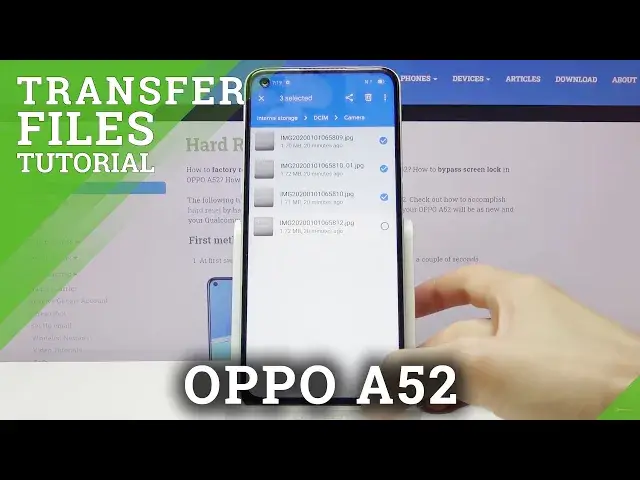
0:00
Welcome, in front of me is the Oppo A52 and today I'll show you how to transfer files
0:11
from your device to an SD card and vice versa. Now to get started we'll need to open up the files app which is in the Google folder
0:23
And from here at the bottom you should see your two storages, so the internal which is
0:28
your device and then whatever this gibberish here, that's gonna be the SD card
0:33
Now if at the bottom you see nothing, tap on the three dots and you should see show
0:37
storage devices where for me it says hide storage devices. And once you tap on it, it will show you the storage devices
0:45
And from here we want to find our files. Now if you're looking for pictures, videos that have captured with the device, they will
0:52
all be located under the DCIM folder. As you can see I have some right here
0:59
Then you have the downloads folder which will contain anything that you have downloaded
1:03
on the device, that would be through a web browser or email, it all will be stored in here
1:07
Movies, music, notifications, podcasts, ringtones are usually empty folders, assuming you haven't
1:15
placed anything there yourself. And last thing left is the pictures folder which usually contains screenshots, although
1:22
for me it's empty at the moment. So once you find your files, which for me I have four photos that I have captured for
1:29
this purpose, what you want to do is select them. Now there is multiple ways you can do it
1:34
If you want only one file you can simply hold it like so and get selected and from here
1:40
you will tap on the three dots and go to move or copy. Now if you want more files, more than just one, you can simply tap on additional ones
1:49
to add them on. If you have for instance about a hundred more, whatever number might be, more than you're
1:56
willing to try to select yourself, you can simply either select all by tapping on the
2:02
three dots right there as we had right here, select all, or you can also select the entire
2:09
folder itself along with all of its content. Now whichever way you do it is completely up to you, but once you have it selected tap
2:16
on the three dots and go to move or copy. Move will completely remove the files from where they are right now while copy will create
2:24
an additional set of them. So choose which one you want. I'm going to go with move and from there it will pop up with the two options
2:31
You can move it somewhere in the phone, so just change the location of the files where
2:36
they are right now to a different place or move it to a completely different location
2:40
like the SD card. I'm going to go with the SD card now and from here it shows you the structure of the SD card
2:47
As you can see it's almost identical to the phone with basically all the same folders
2:52
And from here you can place it wherever you want, so I'm not going to be bothering with
2:56
placing it in a specific place, I'm just going to drop it right over here
3:00
Let's continue. And allow access, allow. Now I believe this is only done once
3:07
And there we go. As you can see we're now done and if we go to the SD card we should have camera folder
3:15
and there are the four photos which will no longer be visible in here
3:20
Go under the DCIM, you can see there's nothing in here. So that is how you would move, copy files from one location to another and if you found
3:29
this video helpful, don't forget to hit like, subscribe and thanks for watching