0:00
Welcome! In front of me I have Garmin Venue 3 and I'm gonna show you how to download or
0:05
install applications on this watch. Before we start, if you want to install applications on this watch
0:17
your watch needs to be paired with a phone via the Garmin Connect application
0:21
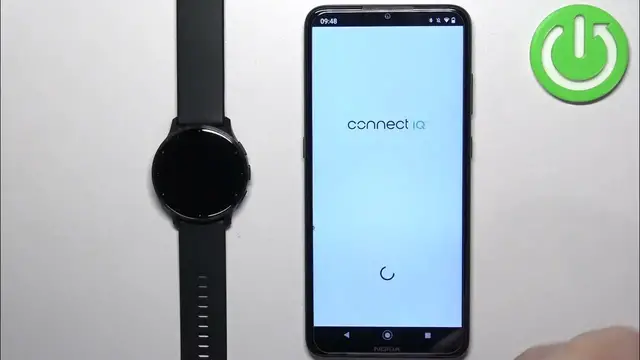
Once the devices are paired together we can continue. And now I recommend to download and install the Garmin or rather Connect IQ Store application
0:31
on your phone, on the phone that is paired with your watch, because it's gonna make installation
0:35
of applications a lot easier. To do it we need to open the App Store. Before that though
0:42
make sure you have the internet connection and Bluetooth enabled. Once you do, open the App
0:46
Store on your phone. I'm gonna use the Google Play Store because I'm using Android phone, but
0:51
if you're using an iPhone you can also find that application in the iPhone App Store. So open the App Store, tap on search and type in Connect IQ Store
1:06
And once you type it in, tap on search, scroll through the list and find this application
1:11
Connect IQ Store by Garmin with this icon. Find it, tap on the install button to download and install it
1:20
Once the application is done installing, tap on the open button to open it
1:26
In the app tap on welcome, then tap on continue, check the box, tap next
1:35
And you should see the, oh never mind, if you see the pop-up about the permissions, tap on allow
1:41
And now you should see the IQ Store after a second or two. You have different categories of
1:47
watch faces and apps. As you can see, I'm just gonna tap on search and select the apps category
1:53
to narrow my search only to apps. And now I can scroll through the list, find the application
1:58
I want to install. And once you find the app you want to install, simply tap on it
2:04
I don't know, maybe this one. So tap on the app, then tap on the install button and wait
2:10
It's gonna start downloading. Basically now it's in queue, but after it's done downloading and installing
2:16
you will see this pop-up on the screen. Then you can tap on got it. You will see the uninstall button
2:21
which means that the app is installed because the app is installed. And you can see the
2:26
pop-up on the screen. Then you can tap on got it. You will see the uninstall button, which means that the
2:33
app is installed because you can uninstall it. If you go to your watch and I believe press the
2:39
action button to open the activities, then you can select apps. And here you can scroll down
2:45
and you should see your application right here. You can tap on the icon to open it, as you can see
2:50
Okay, you can also check the list of installed apps in the Connect IQ store. So you can go back to the
2:58
main page, then tap on my device, tap on my device apps and here you will see the list of apps
3:04
installed on your watch. Okay, and that's how you install applications on this watch. Thank you for
3:11
watching. If you found this video helpful, please consider subscribing to our channel and leaving
3:16
the like on the video