0:00
Welcome, Enfronmi's a RealMeX50 Pro and today I'll show you how to go through the setup process of the device
0:10
Now when you put it up for the first time, you'll be presented with the language select. So select the language that you wish to use
0:18
I'm going to stick with the one that is selected by default for me and then top on next
0:23
And from here you want to select your region. Now this isn't actually need to be accurate
0:30
Then once you move forward, we have the terms of service. Obviously we need to agree to them, otherwise we can't really proceed
0:38
Now, the only thing you need to agree is the actual terms of service
0:42
which are the ones above. Rest is optional, as you can see at the end in parentheses
0:48
They did make sure that you can see that optional at the very end of the sentence
0:55
So from here, you can tap on next and connect to Wi-Fi. Again, this is completely optional
1:02
You can do that right now or if you don't have Wi-Fi near you, you can completely skip
1:05
this and it will not really change much. The only thing that you won't be able to do during this setup is log into your Google
1:12
account and restore the device from that Google account But you can do that later on once for instance once you log into Google through settings you can still do the same thing you have Wi assistant now I would
1:29
advise on turning this on what it will do is switch Wi-Fi's to the better one so if
1:34
for instance right now you have access to two different Wi-Fi's and the one that you're
1:39
connected to right now is a little bit trash the phone will automatically switch the
1:43
the one that is better, faster and stronger. And furthermore, once you enable that, it gives you another option to connect your mobile network
1:52
So if both of those Wi-Fis are complete and other garbage, it will switch to your provider's
1:57
mobile data. Now, this will still lose, in this case, use your data
2:04
So keep that in mind. Now, let's go to the next. And we have Google Services
2:09
So we have things like use location, scanning, and send user and diagnostic data
2:13
Now you can tap on arrow and extend the list to get a more comprehensive overview of what it exactly does
2:21
So each one of them has just a description. And you can deselect all three of them if you want to
2:31
And let's go to next. Set a like screen password. Completely optional
2:36
You can do that if you want. Go to settings And by default it ups into not very common six pin I not a fan of that so we going to go to other encryption method here we have option for patterns 4 digit 4 to 16
2:54
digit and just an alphabetical password so I'm going to go with the pattern that's just what I like
3:00
and I need to draw the pattern reach what the same pattern once more and that's said and then
3:06
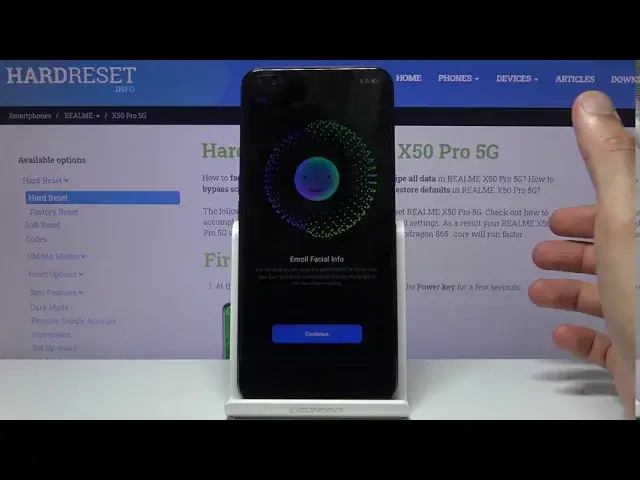
automatically jumps to face recognition which launch the camera right when I tap on continue let's see and there it is so I just
3:16
captured my smug face there and turn on a race to turn on screen this is a good
3:25
option I guess to have if you're using face recognition it will allow you to
3:29
basically raise the phone and it will automatically scan your face and unlock the
3:33
device so this is a really nice thing that it can enable now if you don't want it
3:37
Later on in the settings you can disable it if you test it around and don't want it or just if you already know that you don't like it
3:44
And then we have fingerprint now automatically it goes through all the Encryptions, but you can skip them by for instance stopping on cancel like so and you don't have to add fingerprint if you want to
3:54
Or if you don't want to Then we have some recommended auto update overnight and the home screen icons so One is just a update If you believe no matter what you said here I think the phone still updates overnight at least that how I feel with my device although it a different brand so you can test it if you want it if you
4:16
like to have the latest update probably the good thing to have on and home screen
4:19
icons once you top on here you will have these different styles of icons to
4:24
choose from personally I really like the default one the first one
4:29
So that's what I'm going to stick with. And from there, let's go to next
4:33
Import data. Now, this will use the built-in app that RealMe provides with
4:39
provides the phone with. And if you have a different device that isn't RealMe
4:43
you will be required to download that app on that phone and then connect them both to each other
4:48
and just transfer the data to HotSpot, I believe, it will be
4:55
So from here, I'm going to choose later. I don't really have anything to try
4:59
transfer I'm setting it up as new and we're basically now done and there we go
5:07
so if you found this very helpful and don't forget to like subscribe and thanks for watching