0:07
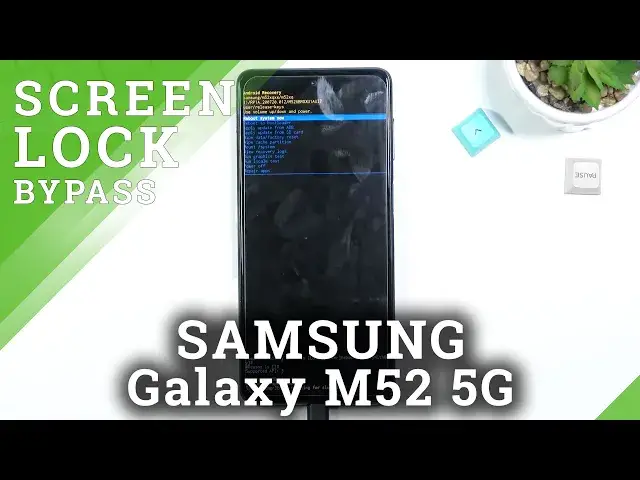
In front of me is a Samsung Galaxy M52 and today I'll show you how to hard reset the
0:13
device through recovery mode. Now this process will also remove a screen lock if you have one that you don't know
0:20
I went and set up a pattern right here just for this purpose and even though I know it
0:27
I'll progress from the lock screen as though I don't. So anyway, to get started we'll need a computer for this, just so you can plug in your cable
0:36
to your computer and then you want to connect that cable to your phone
0:40
So let me just grab it from under the desk. There we go
0:46
So there's my cable, it is already connected to my computer. So what you want to do is simply plug it in
0:51
There we go. Maybe you heard a sound from the computer that it popped up
0:58
So anyway, from here you want to hold power key and volume down and you'll hold both of
1:03
those keys till you see the screen turn off at which point you will switch from volume
1:07
down to volume up. Now you want to interact with the screen just so it doesn't turn off like it did right now
1:13
Just so you can see when it actually goes black that means that the phone just turned off
1:18
So anyway, I'm going to hold the lock right here just so I can interact with it
1:22
It kind of got stuck right here, so that's okay. Just turned off so I'm switching to volume up
1:31
It doesn't want to turn on again so let's see
1:41
Try that once more. Give it a little bit of a breather right here
1:47
Let's try it again. Power key and volume up because the device is turned off at the moment
1:57
It's turning back on. And there we go. So it just connected
2:04
I'm not sure why it didn't want to go from the beginning. As you can see I just let go of the keys and then started to hold them once more and that
2:10
seemed to fix it. So anyway, from here we're going to use volume keys to navigate and you want to use those
2:17
keys in order to select wipe data factory reset and then confirm it with power key
2:23
Again select factory data reset, confirm that. This will give you right here dialogue data wipe complete at which point reboot system
2:31
now will be selected by default. So you need to only press power key once again and this will initiate a reboot and also continue
2:38
the process in the background. That means that the device will take a little bit longer to boot back up because it is continuing
2:45
the process in the background, but once it's finished we should then be greeted with the Android setup screen
2:50
So I'll be back once that is visible. Oh, and additionally you can also unplug the device
3:03
Okay, and as you can see now the process is finished and you can setup your device
3:23
however you like. So if you found this very helpful, don't forget to hit like, subscribe and thanks for watching