0:00
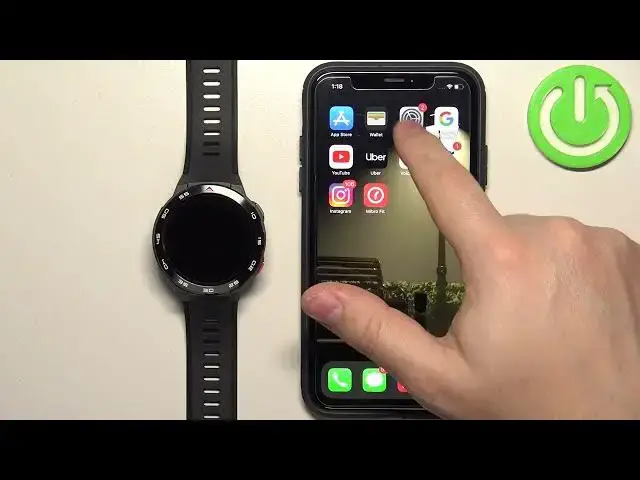
Welcome! In front of me I have MibroWatch GS Pro and I'm gonna show you how to enable the phone
0:05
notifications for this watch on the iPhone. Basically if you want to receive the notifications
0:10
from your iPhone on your watch. Before we start, if you want to receive the notifications from
0:19
your iPhone on your watch, your watch needs to be paired with the iPhone via the MibroFit
0:25
application. Once the devices are paired together we can continue. And now we need to make sure that
0:31
the required permissions are allowed for your iPhone and the MibroFit app to send the notifications
0:36
to your watch. So open the settings on your iPhone, then find the Bluetooth option and tap on it
0:42
And here you should see watch called or device called XPA-W013A6D4, something like this
0:50
on the my devices list. Once you see it, tap on the info icon next to it and here you should see
0:55
the option share system notifications. Make sure that this option is enabled. If you don't see
1:01
this option, close the settings, open the MibroFit app, tap on devices, wait until the watch connects
1:11
to your phone and tap on notifications and turn off and then turn on the notifications. Wait a couple
1:18
of seconds and after a couple of seconds you should see the pop-up on the screen about the
1:22
permissions. Allow the required permission and then you can go back to settings, Bluetooth
1:30
info and you should see this option here. Make sure it's enabled. Once it is, go back to the main
1:35
page of settings, scroll down, find the Mibro application, MibroFit, tap on it and here make
1:42
sure that the Bluetooth option is enabled. Once it is, close the settings, open the MibroFit app on
1:48
the iPhone, tap on devices, wait until the watch connects to the iPhone, tap on notification
1:55
turn on the notifications by tapping on the switch. You can also enable the option to wake
2:00
up the screen when you receive the notifications and then you can enable and disable notifications
2:05
for different types of notifications like phone, hang up SMS and also apps like FaceTime, Skype
2:11
WhatsApp and stuff like that. So enable the notifications for the apps you like
2:17
If you don't see the app you want to use on this list, make sure to enable the other option
2:23
others option. This option basically turns on notifications for every app that is not on this
2:28
list. So every app on your iPhone that is not on this list. Okay and once you're done, you should
2:33
be able to receive the notifications. I'm gonna log in into Discord and I'm gonna send myself
2:38
a message on the Discord and we should get it on our watch. So let me log in
2:48
Okay, now I'm gonna send myself a message on Discord. As you can see, we got it on our iPhone. Let's see if we got it on our watch
2:59
And we did. It's here. Okay and that's how you enable the phone notifications for this watch on
3:06
the iPhone. Thank you for watching. If you found this video helpful
3:11
please consider subscribing to our channel and leaving a like on the video