0:00
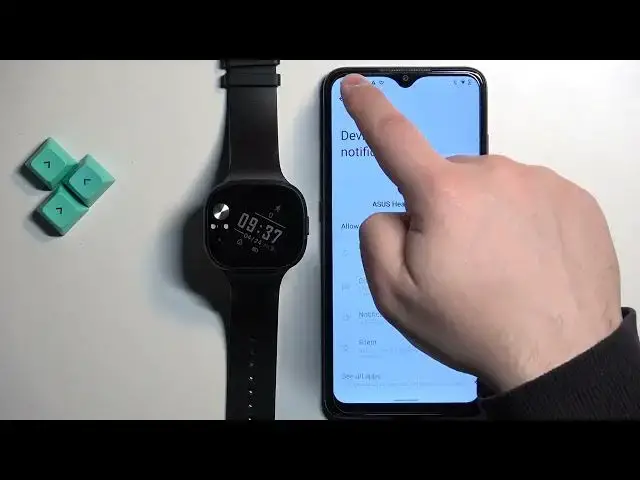
Welcome! In front of me I have Asus VivoWatch BP and I'm gonna show you how to enable the phone notifications for this watch on the Android phone
0:09
Basically if you want to receive the notifications from your phone on your watch
0:18
Before we start, if you want to receive the notifications from your phone on your watch, your watch needs to be paired with your phone via the Asus Health Connect application
0:27
Once the devices are paired together we can continue. And now we can open the Asus Health Connect application on the phone that is paired with our watch
0:36
Once you open the app you should see the Health Data page. Now tap on the device and here you should see VivoWatch BP
0:44
Now find the notification option and tap on it. And right here we can enable and disable the notifications
0:50
For example we can enable the notifications for the calls by tapping on the switch
0:55
And of course if you want them to work you need to allow required permissions. Like that
0:59
And after you allow the permissions the option will be enabled. And at this point you should be able to receive the notifications about calls on your watch
1:07
Next we have the message. Here we can enable the notifications for the applications
1:11
You can tap on the switch. Tap on confirm if you get the pop-up
1:15
And then you need to find the Asus Health Connect on the list
1:19
Tap on it. Tap on the switch next to allow notification access and tap on allow
1:24
And once you allow the notification access for the app you will be able to check or uncheck the apps
1:31
Basically to disable or enable the notifications for them. If you enable the notification for the app right here
1:38
for example let's say I enable it for the calendar and you will receive the calendar notification on your phone
1:44
that notification will be forwarded to your watch. And if you disable it you will only see this notification on your phone
1:50
It won't be forwarded to your watch. That's how it works. So customize it to your liking
1:55
Allow and deny the permissions or rather enable or disable the notifications for the apps you want
2:00
Once you're done you go back. And then we have the SMS option and we can enable the notifications for the text messages
2:07
by tapping on the switch and allowing the permission. And at this point we can close the app
2:13
And you should be able to receive the notifications so I'm going to send myself a message on Discord
2:24
As you can see we got the notification on our phone and also on our watch
2:30
And that's how you enable the phone notifications for this watch on the Android phone
2:36
Thank you for watching. If you found this video helpful please consider subscribing to our channel
2:41
and leaving a like on the video. Microsoft Mechanics www.microsoft.com