0:00
Hi everyone, in front of me I've got OPPO Find X5 Pro and let me share with you
0:14
how to enable the night light or eye comfort mode. So first of all I'll show
0:18
you how to customize this mode and after that much faster access to it. So let's
0:24
begin with opening the settings and here we have to find the display and
0:28
brightness option. Let's tap. Now let's scroll down a little bit to find eye
0:32
comfort. Let's tap on it and as you can see before we will be able to actually
0:37
customize it we have to turn it on. So let's tap on the switcher right here and
0:41
as you can see the screen turns a little bit yellowish or amber and it is in
0:46
order to filter the blue light. What's more it will be much much easier for you
0:50
to look at the screen at the dim light. So that's quite cool option, quite cool
0:54
mode and as you can see after turning it off some options appeared. So first of
1:01
all we've got the switcher which will allow us to change the intensity of the feature. By going to the left and we can make it much much
1:08
cooler and as you can see right now we've got the switcher on this position
1:13
and by going to the right we can make it much much warmer. It's almost orangish
1:17
I'm not really sure if you can see it on the camera. As I can see on the preview
1:21
it's not as orange as it is in real life. So trust me it's very orange and of
1:28
course you can set it just like you want to and just pick the option which is the most comfortable for you. Under it we've got the display effect. So we've got the
1:35
colors or the black and white. Currently we've got the color which means that of
1:40
course the screen will change into this yellowish tones but the colors will be
1:44
kept. So for example as you can see on the switcher we've got still the green
1:48
color and after picking the black and white color everything will be
1:52
displayed in monochromatic effect. Of course only in black white and gray colors as you can see on the switcher. So it's of course up to you
2:01
again which option you like to use the most. I will pick the color. What's more
2:07
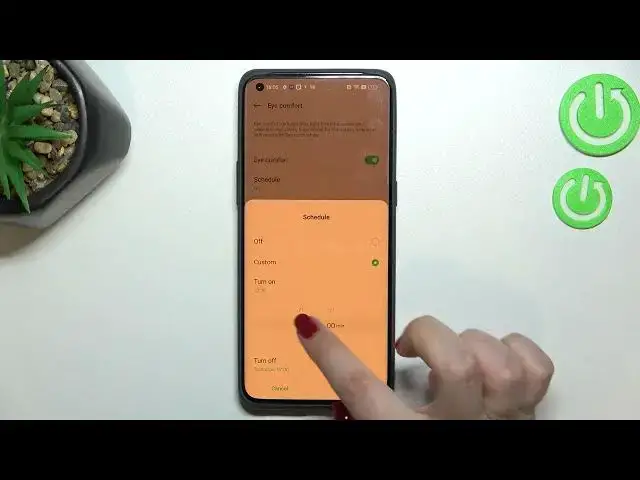
we can schedule that feature and that's also quite a cool option because normally you will have to turn on and off the eye comfort mode manually but
2:15
after tapping on schedule you will be able to custom the time. And as you can
2:20
see you can freely pick the turn on time. So let me pick for example it can be 6
2:26
o'clock safe and I forgot to set the turn off but it can be at 7. And as you
2:31
can see the device immediately got back to its normal state so the screen is in
2:36
its normal colors. It is of course because we are not between the
2:42
start and end time. But let me keep this option turned on and off the schedule
2:49
And basically this is the whole customization of the eye comfort mode
2:53
And now we can find much faster access to this feature. All you have to do is to
2:59
simply unroll the top bar and unroll it fully as you can see. And here we've got
3:03
the eye comfort icon which is right now turned on. If you'd like to turn it off
3:07
just tap on it and the screen will immediately go back to its normal state. And of course you can turn it on the same way from this level. So actually
3:15
this is it. This is how to enable the eye comfort mode in your Oppo Find X5 Pro
3:20
Thank you so much for watching. I hope that this video was helpful and if it
3:24
was please hit the subscribe button and leave the thumbs up