0:02
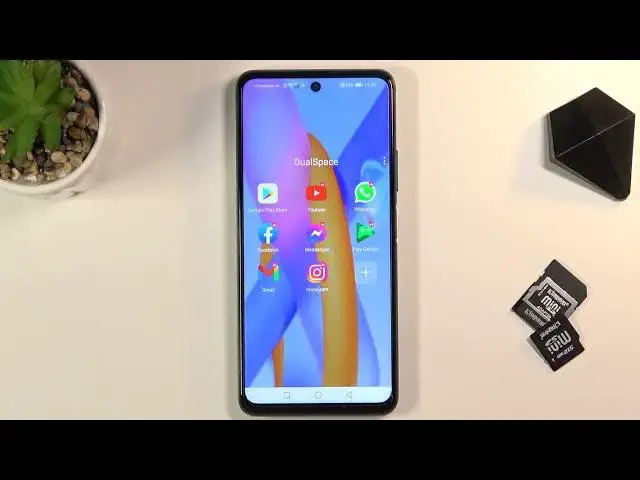
And for them is a Honor 10x Light and today I'll show you how to install Google Play Store along with services on this device
0:16
So because this is technically a Huawei device, as you are aware, doesn't come with any kind of Google Play applications or Google applications
0:26
So to get them installed on here, it is advised to have a fresh
0:29
set up device without kind of any applications installed on there. I do have, well
0:36
quite decent amount of them already installed, so I'll see if it will work or if it won't
0:42
And yeah, let's give it a try. So to start off, you want to be connected to Wi-Fi, which I am
0:48
as I can see right here. And from here we're going to go to our web browser, and then we're
0:54
going to navigate to a hard we set info, but not as E. We're just going to
1:00
remove there we go so hard reset that info from here on the top
1:07
on the three dots or bars in this case and select download
1:11
and write dual and there we go
1:20
and we have dual space application right here so you want to simply click on the download scroll down download it once more and download here and download Apparently just clicking once download isn enough
1:34
So let's give it a moment. It is downloading, as can see, based on that arrow. And now that it's finished, we can tap on Allow
1:44
And then select install. From here we're going to open it up
1:57
Let's start, allow, allow, allow. Give it a second. It gives us a guide, a quick one
2:10
Just going to get out of here. As you can see, it is loading up right now Google Play Services
2:15
That's what it was doing in the background while it was showing us the animation
2:20
And once it's finished, finished. Should I there.ayed. Okay, there we go. So from here, we need to tap on the Google Play Store
2:33
And as can see, we can now sign in. Now I know there's a little bit of iffy thing to it. It kind of works slowly here. Just give it a moment
2:45
If it doesn open it up the window for you to log into your Google account then close it up and we open it But I can see right here we have some Google Play protection is turned on So already we have some Google services running
3:02
And in here we can log into our Google account. So I'll quickly use mine
3:06
Let me just first change the keyboard if I can. Apparently I can't
3:15
I'm going to put in a password for it. So I'm going to move the phone off the screen
3:20
And there we go. As you can see, I just logged into my Google account
3:29
Let's select more and accept. And we should now have access to, there we go, the Google store
3:37
So from here, you can download anything that you want from the Play Store, as you'd normally do
3:42
And it's coming soon as I was about to check it out
3:46
So anyway, I will give you one additional tip because. This kind of works weirdly
3:52
As you will see, it does install the dual space application. You won't find any Play Store app right on your home screen
4:01
so you basically have to go through the dual space application right here
4:06
It's kind of like a virtual machine basically, where you will find all the apps
4:11
Now, if you install new apps, they will appear in here, and then not on your home screen
4:15
And if you want to have them a quick access What you can do to have them on your home screen is simply hold I believe Yep when you hold it it lifts up and all you need to do is then drag over to the top to create a shortcut
4:32
Now it's not installed, so just quickly install it just for the demonstration purposes right here
4:41
Okay, now we go, so it's installed. Let's go back to it, and there's the WhatsApp appell
4:47
Let's do it again, grab it and drag it over, drop it to create a shortcut, and then add it to home screen
4:55
And where is it? Should be somewhere, where is it? Oh, well, it's right up here as literally the first icon
5:09
Now, as you can see, it does give you this little pop-up next to it, so you are aware that this is
5:15
basically a shortcut from this application. because that's what it is in a way
5:20
But when you tap on it, it won't open up the dual space. It just opens up straight away the application itself
5:25
And from here, you can use any kind of app. So, anyway, this is how you would get Google Play services
5:32
download any kind of application through Play Store. And if you found this very helpful, don't forget to hit like
5:37
subscribe, and thanks for watching. Thank you