0:00
Welcome, everyone, this is Google Pixel 4 and today I will show you how to enable and
0:10
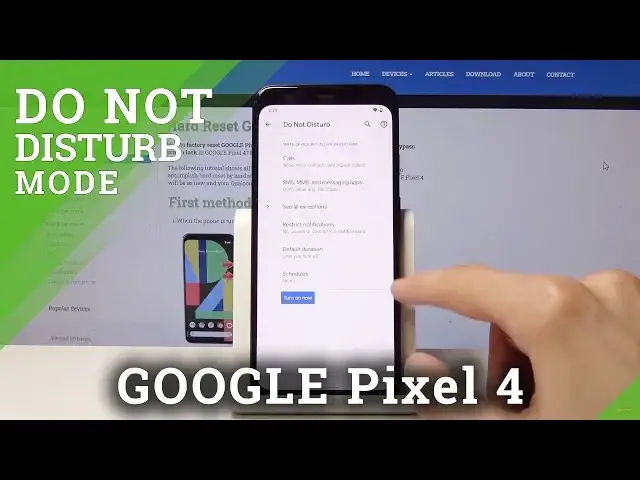
also set up the Do Not Disturb mode. So to enable it, all you need to do is pull down the notification panel and tap on it
0:18
like so. And that's basically all you need to enable it. Now there's also an additional way you can set it up so it enables itself in specific times
0:28
So all you want to do is just hold that option where you have the Do Not Disturb mode and
0:32
take you to the settings. And from here you have a couple options
0:37
So you have the exceptions. We can start with that one. Exceptions are basically when the Do Not Disturb mode is enabled, whatever you set here is
0:48
what is being accepted by or bypassed basically by the Do Not Disturb mode
0:54
So for instance, allow calls and if you change allow calls from anyone, then you can basically
1:04
get calls from everybody. So it really defeats the purpose of it
1:11
And whatever it said right here would basically mean that the Do Not Disturb mode is kind
1:16
of not blocking any calls at the moment. So choose something else, for instance, like stared contacts, which are favorite or contacts
1:23
only, whatever you like it. You also have the same options for messages
1:31
And then you have also toggles for different things like reminders, alarms, media and stuff
1:35
like that. So you can also check them accordingly to what you want
1:40
And the additional option right here that I consider the best one is the schedule
1:46
So by default, you have two of them set, which can enable, for instance, sleep and event
1:52
Sleep I think is basically a night time, so 10pm to 7am, you can go back
2:00
You also have the event, which not really much here. You can add one yourself
2:05
So you don't need to modify these. You can, for instance, create one. So time, whatever doesn't, the name doesn't really matter
2:14
So once you're in here, number one, you can choose the days of the week that you want
2:17
it to be enabled. So I'm going to select Monday through Friday as a work schedule
2:25
So when I'm at work, I'm not getting interrupted by random calls and messages
2:32
So Monday through Friday, then let's set the start time to be at 9am
2:41
And end time at 5pm. And now, where is it
2:57
So basically now it's set. And let's go here. So it automatically, once I actually set up the time, it enabled itself
3:11
And well, it's considering it's the work time right now. So what this will do now is when it is actually enabled right here by the checkmark, it will
3:20
always be turning on itself from Monday through Friday at 9am till 5pm
3:27
And then past the 5pm, it will disable itself. So you won't have to actually do anything apart from initial setup
3:36
And yeah, that is basically how you could set it up. So if you found this very helpful, don't forget to hit like, subscribe