0:00
Welcome and follow me as a Sony Xperia 1 Mark 4 and today I'll show you how you can enable and
0:07
set up your portable hotspot. So to get started pull down your notifications, expand them and in
0:18
here we should find a toggle for it. So for me it's on a second page hotspot. Now when doing this
0:26
the first time you want to hold this toggle. This will quickly take you to the settings where you
0:31
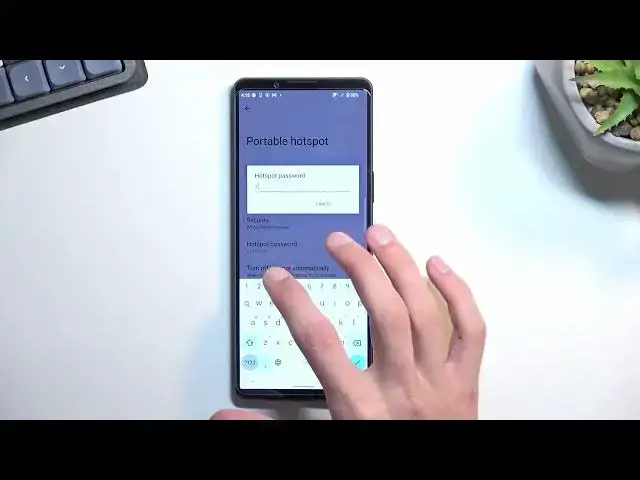
can change some of them. Now most important thing that you probably want to change will be the
0:36
hotspot password. Without actually going in here you most likely won't know what it is. Now this
0:43
one is actually quite weird. Now I don't know if this is a default one, it doesn't actually look
0:49
like it, so maybe someone actually changed it. I think defaulted will be just some random letters
0:55
and numbers. This is a little bit more easy to remember but still without going here you wouldn't
1:01
know what it is. Now what I recommend actually doing with it is removing your basically the
1:07
default password and setting up your own, which needs to have at least eight characters in length
1:13
at which point you can save it by tapping on OK. Next thing you could do is just change the
1:19
hotspot name which will be the just the wi-fi that this will the hot this hotspot will create
1:26
So that's the name you'll be looking for. It is a little bit wonky xperia 8 9 20 so you could
1:33
change it to something a little bit more suitable so you can change the name entirely or maybe
1:39
shorten it to be something like xperia 1 which will be a little bit easier to probably find
1:46
and realize which is yours. Apart from that we have also the turn off hotspot automatically
1:51
which I recommend keeping. It will disable it after 10 minutes of an activity which is a really
1:55
nice feature. And lastly we have the use 2.4 gigahertz only which is actually turned off
2:02
meaning that right now the device once you enable your hotspot will use 2.4 gigahertz wi-fi along
2:10
with 5 gigahertz. So you can utilize a faster network if whatever the device you will be
2:16
connecting to it with actually supports the 5. If it doesn't it will then utilize the 2.4
2:24
So anyway from here we can just close this once it's set up and now all we need to do is tap on
2:30
a toggle to actually use our hotspot whenever we need it. And like the settings suggested after 10
2:37
minutes of an activity it would turn off automatically but you can also do it yourself
2:41
quicker by going back to the toggle tapping on it once more to turn it off. So anyway if you
2:48
found this very helpful don't forget to hit like, subscribe and thanks for watching