0:00
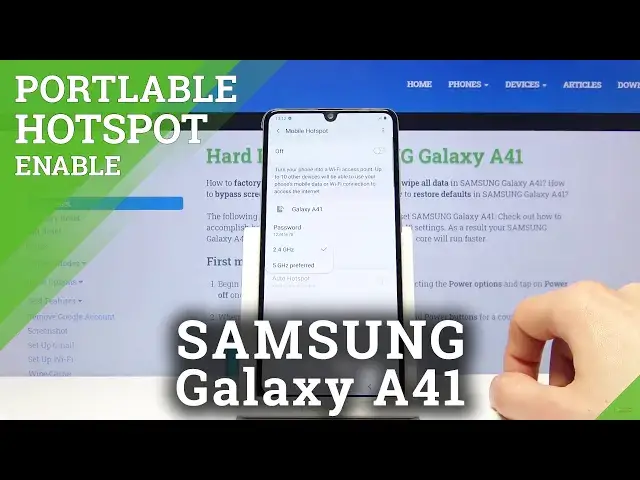
Welcome, everyone on this is a Samsung Galaxy A41 and today I will show you how to enable
0:10
and set up the portable hotspot. So to get started, let's pull down the notification panel where we will find the hotspot toggle
0:18
which is right here. Now the position of it might vary but the name will not
0:25
So from here, before you actually tap on it to toggle it on, you want to hold it and this
0:29
will take us or should take us to the settings. Apparently I'm in airplane mode so let's just disable that
0:38
And there we go. So once you hold it, it takes you to the settings and from here at the top you can change the
0:43
name of your Wi-Fi. So you could change it to something simpler
0:48
I'm just gonna remove the additional numbers for no reason. And it's called now Galaxy A41
0:56
Then you have the password which I would advise to change it. Now the only thing that it will need to have is at least 8 characters in length
1:06
So once it has, you can then tap on save and at the bottom here you have the band so you
1:11
have 2.4 or 5 GHz. Now if you're gonna be connecting to your Wi-Fi with an older device, then I would keep
1:18
it at 2.4 but if you have a relatively newer device from like couple years, it should be
1:24
good enough to handle the 5 GHz. Now the difference in it is just the strength of it so the 5 GHz will be more stable and
1:33
just a stronger and faster option rather than 2.4 will be accessible by a wider array of devices
1:42
And even when you select it, it gives you that devices that don't support 5 GHz won't
1:47
be able to find or connect to your hotspot. So if that is the case, if you don't see your network even though it's connected and your
1:54
Wi-Fi list, then go back here and change it to 2.4. Otherwise I would just keep it at 5, it's gonna be better
2:01
And from there once everything is set, all you need to do is just leave this and you
2:05
don't need to go back here ever again unless you forget the password
2:10
And all you need to do now is just tap on the toggle, turn off Wi-Fi and then it turns
2:16
on the hotspot. As you can see now it's enabled and also you can see it right here, Tethering or Hotspot active
2:22
So in your Wi-Fi list you should now see the Galaxy A41 Wi-Fi
2:28
And once you're done with it, all you need to do is just tap on it once more to turn
2:32
it off. So that is how you enable and set up the hotspot and if you found this video helpful, don't
2:38
forget to like, subscribe and thanks for watching