0:00
Guys, we are so happy that you are today with us
0:02
And right now I will show you how to make your own stickers on the Capcat app
0:08
Let's check it! So first and foremost, we need to go to our application
0:18
I want to go to the camera to the album and photo section to find some photo at the background
0:24
So I will use this photo as a background. Let's tap on the import
0:28
Don't forget to disable and remove this ending, this default ending because it's just the Kepkat logo
0:36
So how to make the sticker, we need to go to the stickers option, sticker screen here on the main menu
0:44
To find some default option to add some default sticker, you just need to click on it one time
0:50
But how to add your own one, you just need to drag this appurred menu a little bit to the right
0:58
side and tap on the first option. So here is our gallery and it's every our photos. Let's
1:06
tap on one we like the most to make a sticker. So for example this one. And guys, we have
1:12
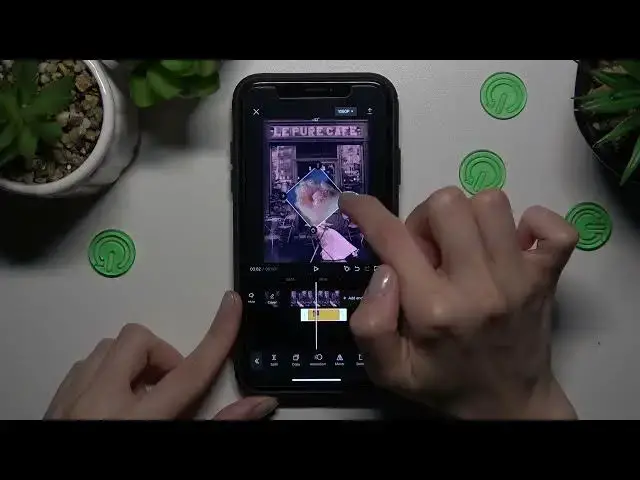
our new sticker added Don forget that you can also manage the time the duration of our sticker For example I want to add this particular point on this time to make our sticker appearance shorter
1:30
Let's check the result after tapping on the play button. Okay, but we have a lot of different options to control and manage this sticker
1:39
After holding on, we can also also, manage the location of this sticker to make it and add it on the center as an example
1:50
Don't forget that you can also hold on this right corner of the sticker and
1:56
increase or decrees the picture by also rotating it. So it's very convenient. Okay, I want to
2:04
save it in this way. Okay. Also you can copy this added sticker
2:13
here as you can check and you can also activate some effect like double sticker after making the second sticker
2:22
appearance shorter So let check it Okay but I want to show you another option so let delete our second sticker after tapping on the delayed Okay So how to correct this sticker We can manage its animation after clicking on this third feature at the bottom
2:45
For example, we can choose the loop feature. It's the loop type appearance of our sticker
2:53
For example, I want to activate its rotation when the sticker will appear on the screen
2:59
Don't forget that you can activate. no sorry activate but control the speed of the animate so for example you want animation
3:11
so for example you want to make it slow okay or very fast okay I want to make it
3:20
slow okay guys don't forget that you can also correct the appearance of your
3:27
sticker and activate another one for example if you want to zoom the sticker and if you want to save these changes let's
3:36
tap on the check mark at the bottom of the screen. Don't forget about the mirror option
3:40
you can also activate it here all and additional features like graphs tracking guys
3:48
Don forget about the split feature also if you want to make two parts of this one sticker and if you want to delete each of them for example the first one you just need to pick on this part on this splited part and tap on the
4:05
delete okay so we have our sticker right now and let's rotate it little bit and locate it
4:15
here as an example. Let's check the result. So cute
4:25
Okay guys, if you want to save this video, you just need to pick on this save button at the top
4:33
And done. Let's go to the gallery to check the results. So, recent, and our new recording
4:43
So this is very easy. and simple way to make your own sticker and if you want to find even more cool tricks and tutorials
4:52
about the CapCats app and other programs, don't forget to subscribe to our channel and check
4:58
other tutorials and guides. So goodbye guys, good luck