0:00
Welcome! In front of me is a ZTE Red Magic 6R and today I'll show you how you can import your contacts
0:07
that are located on your SIM card to the device. Now to get started you'll want to open up your standalone contacts application
0:16
which I believe might be located in the Google folder. Nope. Ah, tools. So under tools you'll find your contacts
0:28
and from here you can see that we already have a bunch of contacts. I have several though most of them apart from just one is located on the SIM card. You can see this
0:39
based on this tiny little icon that indicates that the contact is on the SIM card. If I were
0:43
to remove that SIM card the contact would disappear. So from here we're going to start
0:48
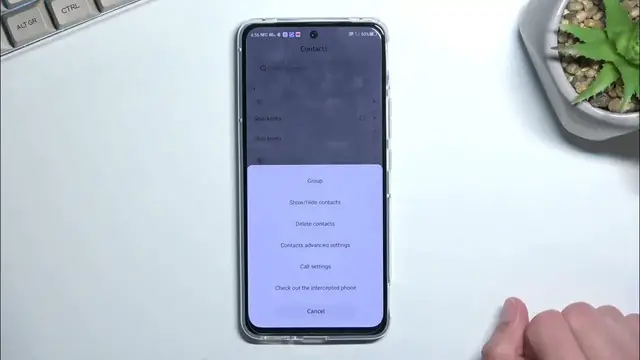
off by tapping on the three dots and then selecting contacts advanced settings
0:56
import from SIM card and it asks you where you want to import the contacts to. You have
1:02
option of mobile phone or your Google account. If you are logged in obviously this will show up
1:06
If you haven't logged into your Google account just yet this option will just not be visible
1:11
right here. But from here obviously you can select which option you want. Just tap on it once more
1:17
This will then display all the contacts that are on your SIM card. You can select them all by
1:21
tapping right here and you can deselect some of them if you don't want all of them manually
1:29
From there select import, import the selected contacts, tap on the text and that's it. I
1:36
believe they have been now imported and yep you can see that they are now duplicated
1:41
So from here if you want you can show or hide contacts I guess. Normally if you would be using
1:50
something like the Google version of contacts you can tap somewhere around here and select that you
1:56
want to for instance show contacts from your Google account, phone or all of them. Here I don't
2:02
see this kind of option so you can just hide them. Now if you're wondering why the heck would you be
2:07
importing them if now it duplicates them and you need to hide them, contacts that are on your phone
2:12
will have more options under them than the ones that are on the SIM card. So SIM card has just
2:18
limited amount of storage and I mean like really really limited amount of storage in terms of like
2:23
it's in size of kilobytes. But on the phone obviously it's not restricted by size so
2:31
for instance when it's on your phone you can add things like contact photos, other things like date
2:35
of birth, additional phone numbers to it and a plethora of other things which you can usually
2:42
view by editing or tapping on a contact that will show it right here and obviously also when you go
2:47
to edit you can see we have some things like mobile, home, groups, ringtones, position which I'm not
2:56
really sure what the purpose of this is, notes and there should be more though I haven't ever
3:04
used this kind of contact application so I don't know how you add more info but obviously there is
3:10
more options in here. So anyway with that being said if you found this very helpful
3:16
don't forget to hit like, subscribe and thanks for watching