0:00
Hi everyone, in front of me I've got Lenovo Tab P12 Pro and let me share with you how
0:10
to check total screen time on this device. So first of all we have to enter the settings and here in this left section we have to scroll
0:19
down to the almost very bottom to find the digital well-being and parental controls
0:24
Now let's tap on show your data at the very top and as you can see right here we've got
0:28
the graph which will show us for how long we've been using this device today and as
0:32
you can see I've been using it for almost three hours and most of the time I've spent
0:38
on the settings and the others. Right here we've got the unlocks count and notifications and basically if you'd like
0:45
to check some further details you can either tap right in the middle of this graph or on
0:51
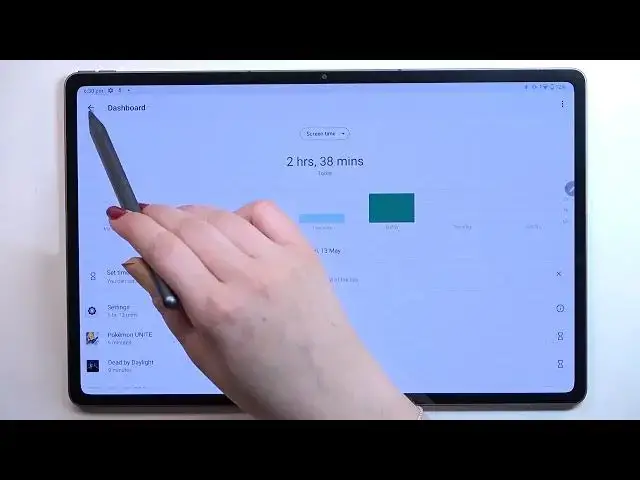
particular apps. So let me show you, let's tap right in the middle and as you can see right here we've
0:56
got the dashboard which will show us for how long we've been using the device in every
0:59
day, in each day and under it we've got all apps listed and what's more we can change
1:06
the screen time to the notifications received and times opened and as I said we've got also
1:11
another way to check the details, just tap for example on the settings and as you can
1:16
see, actually no because that was a misclick, tap on the settings and as you can see we've
1:23
been transferred directly to the graph which is connected with this app so you can check
1:29
that I've been using the settings for above one hour. We can change here also the screen time or from daily to hourly so this is how to check
1:37
some further details, learn more about the screen time. Under it you've got the ways to disconnect which are quite cool option so we've got the
1:45
dashboard, bedtime mode and focus mode and basically the whole idea, the basic idea of
1:50
those options are limiting the notifications so for example if you'd like to just sleep
1:57
you need to work or you just need the time for yourself, you should set the focus mode
2:02
bedtime mode, whatever thanks to which, let's enter, you will be able to mark the apps which
2:09
are the most distracting for you I would say so from which you're receiving most notifications
2:15
so let me pick for example randomly those, for example something like that, you will
2:21
be able to set a schedule so as you can see you can check and pick particular days in
2:26
which the notifications will be hidden and you can set the start and end time and thanks
2:33
to this your device will simply limit the notifications thanks to which you will not
2:37
be disturbed. Under it we've got the reduce interruptions so we've got manage notifications and do not
2:42
disturb mode which is default on the device and here you've got the parental controls
2:47
if you'd like to enter this option. So actually this is it, this is how to check total screen time in your Lenovo Tab P12 Pro
2:54
Thank you so much for watching, I hope that this video was helpful and if it was, please
2:58
hit the subscribe button and leave the thumbs up