0:00
Hi everyone in front of me I've got a Xiaomi 12T Pro and let me share with you
0:05
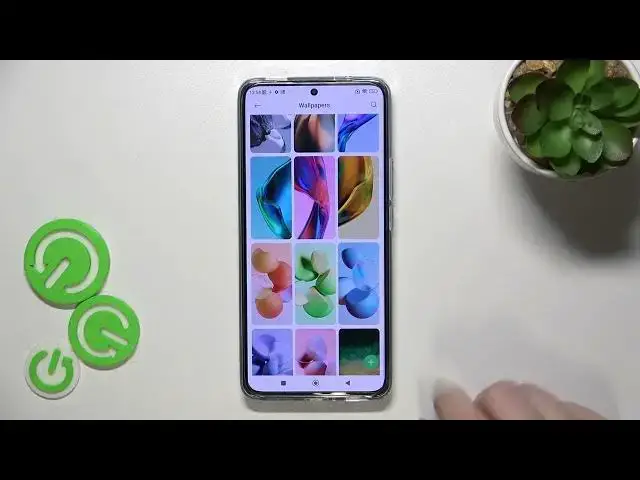
how to change the wallpaper on this device. So first of all make sure that
0:15
you've got the internet connection because it is required in order to open
0:19
the wallpapers. I'll show you in a second. So first of all let's open the settings
0:24
and here we have to scroll down to simply find the wallpaper. Let's tap on
0:28
it and as you can see we will be immediately transferred to the wallpapers
0:33
which are provided by the Xiaomi. As you can see it doesn't look like
0:38
in previous models and so on in previous operating systems. So here we've got the
0:44
wallpapers which are provided by the Xiaomi and you can search them only if
0:51
you will have the internet connection. So for example the Wi-Fi or the mobile data
0:55
If you'd like to check the system wallpapers which are defaultly installed
1:00
let's say on the device you have to enter the profile here and now let's
1:05
tap on wallpapers and as you can see right here we've got the preview of your
1:10
wallpaper here we've got some albums with my live wallpapers, super wallpapers or home screen effects and under it you've got them system
1:20
wallpapers. So those which are regularly defaultly installed on the device and if
1:25
you'd like to set your photo so if you'd like to enter the gallery and pick
1:30
the photo you can of course enter the gallery from the let's say home page
1:34
level but you can do it also here just by tapping on this plus icon and as you
1:38
can see you can pick particular files from which you'd like to add the photo
1:43
So that's how it works here but let me get back to those wallpapers
1:50
Let's pick something. If you'd like to check the preview of the wallpaper maybe
1:55
pick this one. Simply tap on it as you can see here we've got three different
2:00
three different options which are in this kind of a package so you can just
2:06
tap on apply or you can tap on this particular wallpaper to check the preview
2:10
as you can see it will be elongated to the full screen you can check how it
2:14
will look like you can swipe here and check all of the options are adorable
2:19
let's tap on apply and as you can see right now you can decide where you want
2:23
to set it so you can set it as a lock screen home screen or both and I will
2:27
pick both options so let me tap on it as you can see and wallpaper has been set I
2:33
hope so I mean we had the information that the wallpaper is setting right now
2:38
so let's go back to the home page and as you can see here we've got the
2:42
wallpaper applied. So basically that's all this is how to change the wallpaper
2:47
in your a Xiaomi 12T Pro. Thank you so much for watching I hope that this
2:52
video was helpful and if it was please hit the subscribe button and leave in