0:00
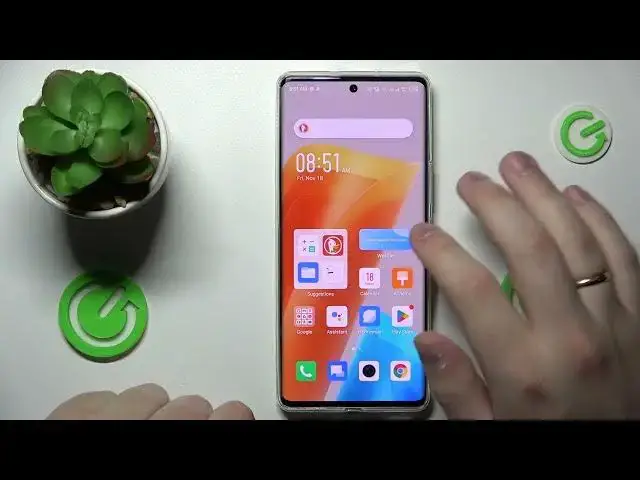
This is the Infinix Zero Ultra and today we would like to demonstrate how you can bypass the parental control function and turn it off on this device
0:14
So to start off I would like to mention the most important thing that in the method that is going to be shown today you have to know the password
0:22
Password to the child's account I mean, otherwise it will not work
0:26
So if you do know the child's password, or if you are a child you know your account's password, just open settings, then enter the Google category
0:39
In here go for the manage, I mean first of all let me show that the parental controls are actually active over here, as you can see they are
0:48
So now you're going to tap on the manage your Google account option over here
0:52
Once the Google account settings page will load you're going to open the data and privacy section, scroll the page all the way down
1:02
And prior to proceeding with the process I also got to mention that in order to bypass the parental control option we will need to temporarily delete the Google account that is associated with it
1:16
But do not be afraid, we will recover and restore the account right after
1:20
So no worries on this end, you do not have to permanently get rid of the Google account, so you'll get it back in a few moments after switching off the parental controls
1:31
So let's tap on the delete your Google account option. Enter the password, because as I mentioned at the start in order for the method that I'm showing you to work you've got to know the password, otherwise you will not be able to
1:45
Execute it, so after you have entered your password, just well if you want you can read everything that is written right here, check those two boxes and confirm the account deletion
1:59
Now we'll wait, as you can see the Google returns an error, some error occurred or something went wrong, wrong to be exact
2:07
Which basically means that we have successfully achieved our goal and deleted the Google account
2:11
Now if we'll go to the settings and enter the Google category we'll see that not only no account is currently associated with the device, but also if we'll open up the parental controls we'll see that it is, well, switched off
2:25
Since it suggested we set it up, otherwise, well, if we already had this feature enabled or this feature active it wouldn't definitely ask us to set it up
2:38
So the first part of this method is successfully implemented, which is the parental control deactivation
2:48
Now all that it's left to do is to reactivate or restore the Google account that we have just deleted
2:54
It is a very simple thing to do. Open up the Play Store app, sign in, enter the, well, deleted account credentials
3:03
So I'll start with typing in the email address. Then, as you can see, you get this account with recently deleted and maybe recoverable message, which identifies that you are on the right path
3:19
Then click on next, enter the account password. We'll do it off the screen real quick
3:27
Once I've entered the password I've gotten this something went wrong message, which is not a big deal at all
3:36
It might happen sometimes. All that you've got to do is to re-enter the credentials once again
3:42
So let me do that swiftly now. So this time it went through
4:04
So from here you want to tap on the I agree button, then accept every Google service or whatever terms it asks you to
4:13
And that will be it. The account has been successfully recovered. The parental controls are successfully deactivated
4:24
The account has been, well, re-associated with the device. So great success, I would assume
4:31
Alrighty, so that will be it for this video. Thanks for watching and bye-bye