0:00
Welcome. And follow me is a Real Me Gt Neo 3T, and today I'll show you how we can bypass the Google verification on this phone
0:11
As you can see, a phone I have right in front of me is locked. It's telling me to put in the six-digit pin in here to basically get past this
0:20
I think if I close this, it's going to tell me to also do it through Google. Now assuming we don't know either of those, we can just remove this
0:27
And on this phone, it is pretty easy. So we're just going to just going to. I want to back out to here first
0:33
So you want to make sure that you're connected to network. From there
0:38
Back out to second page from the setup, which is the language selection page
0:43
Click right here on this little guy. Enable accessibility and then select to speak
0:50
Top on this blue text. Talk back on. Welcome to talk back
0:56
Welcome to talk back. There we go. I prefer to mute it. It's a little bit distracting to me. It's not required, so if you don't mind it, keep it on. If you do, turn it down
1:06
Anyway, from here, you want to draw a mirrored L like this on a screen in the green outline. Make sure that the text is still selected
1:15
This will bring up a window, so allow Android Access Accessibility Suit to record audio
1:21
Top once on the first option and then double top to confirm it Then single type use voice commands and before we double tap on it I going to quickly just go over what we need to say because this will be verbally told to the device
1:37
So when you double tap on it, you will hear a beep, most likely
1:42
and the device will be at that point listening to you, so you want to say open Google Assistant
1:48
You'll hear two more beeps, one to accept the Open Google Assistant command, and the other one that Google Assistant is now open and listening to you
1:55
at which point you want to say open YouTube, and that's it
1:59
So, anyway, I'm going to do that right now. Open Google Assistant
2:08
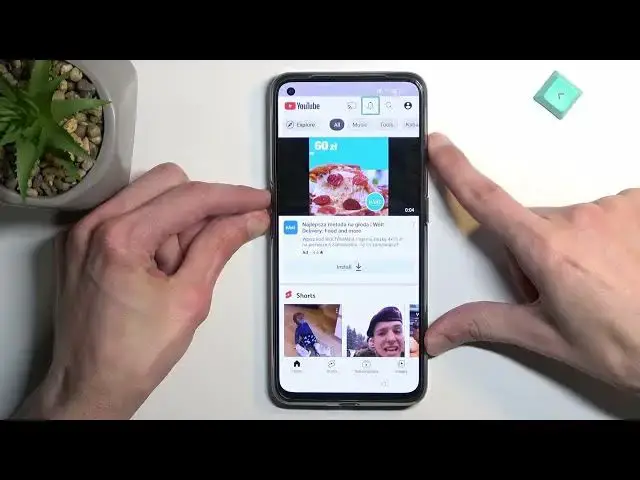
Open YouTube. Opening, YouTube. So there we go. Now, once YouTube is open, you want to hold power key or not par, power volume up and volume down
2:21
Select turn on, double top, and then hold them again. There we go
2:29
So this turns off talkback, obviously. Now from here you want to select the account icon, go to Settings, and then
2:36
you're going to navigate to, let me just quickly check, I think it's going to be about
2:44
and then Google Privacy Policy, accepting Continue, and no thanks. From here you want to navigate to hard resetter slash bypass
3:00
Like so. Oh, actually, not like so. I misspelled it
3:19
There we go. So from here, we're going to just scroll down to settings, click on it
3:36
From here, scroll all the way down to system settings. Again, scroll all the way down to pack up and reset, reset phone, and then erase all data
3:47
erase all data and we're going to do that once more. This will now start factory resetting our phone and once this is finished
3:55
the device will be fully unlocked. So from there obviously we will be back in the setup screen just because we did
4:01
perform a factory reset but the phone is fully unlocked at that point and you can go through the setup however you want
4:06
I can set up whatever you want, skip whatever you want and yeah so I'm gonna still continue this onward just so you can see that it worked
4:16
So I going to finish the reset and then do a really quick setup so you can get a look at the finished result
4:47
Okay, so reset is now finished and like I said I'll just go through a quick setup
4:58
Apparently I need to connect to network for some stupid reason even though the device is unlocked
5:07
So let me just sign in. and there we go. So if you found this very helpful don't forget to add like
5:37
subscribe and thanks for watching. Thank you