Up next in 10


Unlock FRP Tutorial: http://www.hardreset.info/devices/samsung/samsung-galaxy-a8-2018/faq/bypass-google-verification/
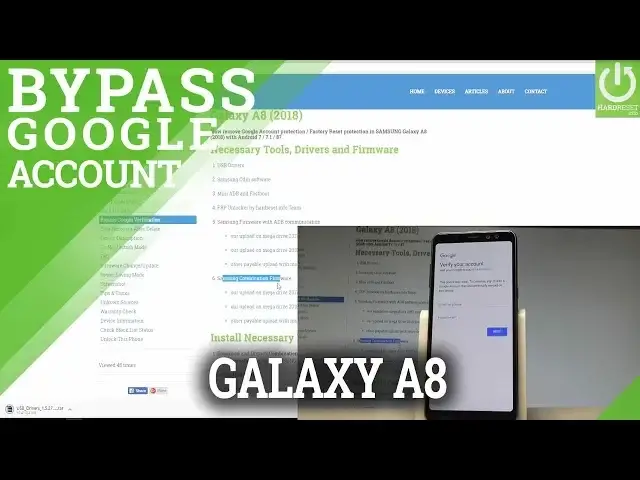
The easy step by step tutorial of unlocking the Factory Reset Protection. Check out how to bypass Google Verification and activate your SAMSUNG Galaxy A8 (2018) without Google Account. All you have to do is flash your device with the combination firmware and the return to the normal software.
How to bypass google verification in SAMSUNG Galaxy A8 (2018)? How to skip Google Verification in SAMSUNG Galaxy A8 (2018)? How to unlock FRP in SAMSUNG Galaxy A8 (2018)? How to unlock Factory Reset Protection in SAMSUNG Galaxy A8 (2018)?How to unlock factory reset protection in SAMSUNG Galaxy A8 (2018)? How to remove Factory Reset Protection in SAMSUNG Galaxy A8 (2018)? How to activate your SAMSUNG Galaxy A8 (2018) without the Google verification?
More Info:
http://www.hardreset.info/devices/samsung/samsung-galaxy-a8-2018/faq/bypass-google-verification/
Show More Show Less View Video Transcript
0:00
Here I have Samsung Galaxy A8 2018 and let me show you how to bypass Google Verification
0:10
on the following device. So let me show you how to accomplish unlocking FRP on the following smartphone
0:16
So at the very beginning let's use the tutorial from hardwareset.info. Here you need to download a couple of things
0:23
The USB drivers, the Samsung Odin software, the Mini-ADB and Fastboot, the FRP Unlocker
0:32
by hardwareset.info, the Samsung Combination Firmware. You can use our uploads, for example from the 2018 uploads
0:43
Here we've got the folder for your device, so for the Galaxy A8 this is the folder SM-A50F
0:52
This is the exact model number of your device and here we've got two combination firmware
0:58
So you have to make sure which of them you have to use
1:01
So let me show you how to check it. Let's press power key on your device, choose power off, tap power off again, wait until
1:07
your device will be completely switched off and afterwards let's use the following combination
1:12
of keys, power key and volume up. So let's hold down together these two keys just for a few seconds, release both keys
1:19
as soon as Galaxy A8 logo pops up
1:36
Wait for the Android recovery mode. You have to check out the version of your device
1:44
So as soon as no command logo pops up, start holding power key and while holding power
1:48
press volume up once
2:04
Alright and here you can use the following information, your model of the firmware, it's A530FxxU1
2:16
So this is my model A530FxxU1, so let's use right click, choose download and standard download
2:24
What's more here you can also check out the CSC code XEO, so let's just remember this
2:30
code, I will use it later. So now let me just press reboot system now, so let me navigate by using volume keys to
2:39
reboot system now and press power key to confirm it, the device is booting
2:44
You also need to have the regular firmware for your device, the standard firmware of
2:50
ADB communication. Here you may also use our uploads from Mega Drive right here
3:00
So let's use the following folder, SMA530F and you can download this firmware
3:07
You can also do it by using our other tutorial, firmware change update and here basically
3:14
let me show you how to do it. If you would like to download your own firmware, let's just download and unpack some firmware
3:21
let's download and unpack Odin and afterwards you need to open some firmware, so let me
3:29
do it. Here I have unpacked some firmware, let me open this right here and here you need to
3:36
enter your model number, so in my case it's SMA530F and you need to enter your region
3:43
in my case it is XEO, you can check out this in the recovery mode or you can use our tab
3:51
we prepare for you country carrier Samsung tab, here you have to open this country carrier
3:56
Samsung tab and let's choose your country, in my case for example it's Poland right here
4:02
and let's check out your carrier, so let's choose your carrier. In my case let me use without the carrier, so my code is XEO
4:11
So when you have input model and region you have to also choose the auto, binary nature
4:22
check CRC32, decrypt automatically. Now choose check update, the firmware is looking for the newest software available, as you
4:28
can see here you can download the software, let's just tap download, wait until the download
4:33
will be completed, afterwards the SAM firmware will check CRC32 and decrypt the firmware
4:41
and that's it, then you will be able to unpack the firmware and use it
4:45
So as you can see right here in my case I've got everything in a download folder, here
4:51
I have everything downloaded, unpacked and installed, all drivers are installed or the
4:59
following files are unpacked, here I have my combination firmware, here I have my regular
5:05
firmware with ADB communication, so now I need to open the Odin, let me open Odin right
5:10
here, this is the Odin software, that's right and now let's enter the download mode on your
5:18
device, so let's press power key again, choose power off, tap power off one more time
5:24
Let's wait until your Samsung will be completely switched off and afterwards let's use this
5:27
combination power key, volume down and volume up, let's hold down together these three keys
5:32
for a couple of seconds. As soon as warning pops up let's press volume up to continue and this is the download mode
5:40
so now let's connect your device with the PC by using the USB-C cable, so let me do
5:46
it, alright, the Samsung is connected, as you can see on your Odin software the device
5:54
is added, so you also need to choose the options right here, choose auto reboot and
6:00
factory reset time and now let's flash your device with the combination firmware, so let's
6:07
choose AP right here, choose your combination firmware, here I have my one, let's tap open
6:14
let's wait until the AP will be loaded
6:42
And the AP is loaded, so now let me tap lock to see everything and choose start right here
7:12
Alright, the flash is done, now you may simply disconnect your Galaxy A8, let me do it from
7:29
the PC, so let me just use the USB-C cable, let me disconnect it, let's wait a couple
7:38
of seconds
7:56
As you can see the factory binary is loading, so it's a good sign
8:26
Alright, now let's use the following apps icon right here on your device, let's find
8:33
and select the settings, scroll down and let's make sure that you have enabled developer
8:39
options, if not let's just choose more, sorry, let's just choose about the emulated device
8:47
and let's tap a couple of times on build number, now let's go back, choose developer options
8:52
again and here you need to enable USB debugging, so let's scroll down, as you can see in my
9:02
case USB debugging is enabled, but let me do it again, USB debugging is enabled, so
9:07
it's a good sign. So afterwards you need to turn off the device
9:16
Now let's enter the download mode again, so let's press power key, volume down and volume
9:21
up together, there's 3 keys, this combination of keys, keep holding those 3 keys, the warning
9:27
pops up, press volume up to continue. Alright the download mode is already on the screen, now let's go to your Odin again, here
9:35
let's choose reset to reset all the following options, let's connect your device by using
9:41
USB C cable, alright, as you can see on your Odin the device is added, now let's again
9:52
go to options, choose auto reboot and factory reset time, alright, now let's load the firmware
10:00
so let's choose BL file, so this is my firmware, choose BL, now choose AP, this is the largest
10:10
file so you have to wait a few seconds, maybe a few minutes, so let's be patient
10:40
Alright, the AP is loaded, so now let's go for the CP file, choose CP file, choose CP
11:11
file, let me choose it right here, and now CSC, but it's important to choose the home
11:18
CSC, so let me do it, let's choose home CSC right here
11:30
And now you are ready to flash your device with your firmware, so let's tap start, let's
11:36
wait until the flash will be completed. As you can see the flash is done, now you may disconnect your device, so let me do it
12:28
alright, let's just wait a few seconds until your device shows you the welcome panel, and
13:36
we are ready to flash. Alright, let's unlock the screen right now, here let me accept the conditions, as you
13:51
can see my device right now has the language from my firmware, so we have to be aware of this
14:05
Alright, let's go for the next step, so let's go for the next step, so let's go for the
14:28
next step, alright, let's accept the terms and conditions, tap next. So now as you can see you can change your language if you would like to, so let me choose
14:54
general management, tap language, let me add the English one right here, alright, set as
15:08
default, and as you can see just activate your device without the Google account, but
15:16
to complete the full unlocking process you can also accomplish the hard reset operation
15:28
by choosing the menu. Let's also choose developer options, let's enable OEM unlocking, tap turn on, and to
15:38
fully erase the factory reset protection let's choose general management, tap reset, factory
15:43
data reset, choose reset, and delete all, let's wait until the process will be completed
16:13
Alright, the welcome panel pops up, now let me make sure that I can activate my device
16:20
without the Google verification, so let me choose my language, tap start, let me quickly
16:27
go through this process, tap next again, next, let me skip the WiFi, let me agree to terms
16:35
and conditions, tap next, if everything is alright with the date and time let's tap next
16:46
let me choose the language, tap start, let me quickly go through this process, tap next
16:53
again, next, let me skip the WiFi, let me agree to terms and conditions, tap next, if
17:01
everything is alright with the date and time let's tap next, let me choose no thank you
17:07
to the setting up screen lock, tap skip anyway, tap more to Google services and agree, let
17:16
me skip the Samsung account, tap skip, tap finish, later, and that's it, as you can see
17:24
you just activated your device without the Google account, so it means that you fully
17:30
erased the factory reset protection. Thank you for watching, please subscribe our channel
17:35
and leave a thumbs up under the video