0:00
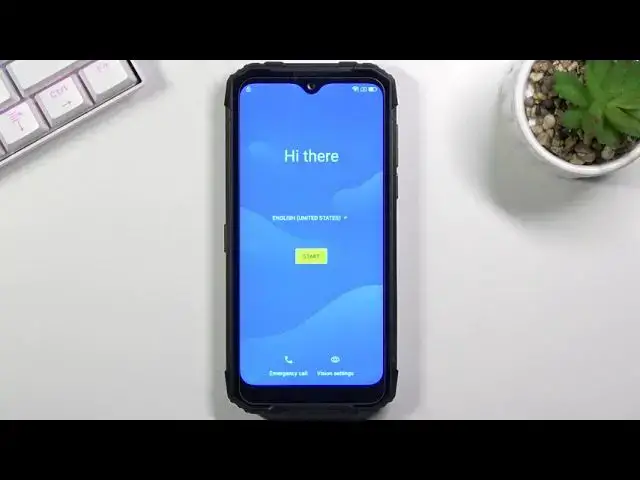
Welcome. In front of me is a DoGy6 Pro and today I will show you how to bypass the Google verification on this phone
0:16
And you can obviously see a phone right here is locked and I can not like it either using the pattern that was previously used, which will be, I believe, fairly important here
0:26
So just keep, remember that right now on this phone there is a pattern, because that will be a way of unlocking the device
0:34
Now, also you can unlock it obviously using Google account, but that's something we don't know either of those
0:39
To begin the process, we're going to go back to the first page, change our language to any kind of language that uses a different keyboard
0:46
So scroll all the way down and choose anything all the way from the bottom, I believe, up to Turkish
0:51
So you can choose whichever one you want. And from there, you want to go through the setup
0:56
you do normally. Now once you get to the verification page right here, you're going to select to use Google
1:05
account, which is the blue text at the bottom. And from here, top on the field, and it will bring up a keyboard and keyboard should have a
1:13
globe icon. Now if the keyboard does not have that icon, you will need to go back and change it to some
1:18
kind of different language. It's sometimes a bug, even though, for instance, you selected a correct language, meaning
1:26
one with a different keyboard. A bug is that it just kind of replaces the old keyboard with the one that you
1:33
the language that you have selected, meaning you don't get the globe icon. And like I said, if that is the case, go back again to the first page
1:40
change it to some other language and get back here and you should then see that icon
1:46
Now anyway, to progress further, you want to hold that icon. It will bring up two different languages or keyboards precisely So I going to start off by selecting a query keyboard then holding it again And tapping on the text at the bottom right here this will take me to this page right here
2:03
So from here, I want to select Add Keyboard, which is the button at the bottom. And choose any kind of keyboard from here that does not have an arrow, which at this point, anything down here does not
2:14
Now, as you can see, if you scroll down, you have a couple. So I disregard those and choose anything from here
2:21
Once you tap on one of those, you want to select add button, which is blue button right there
2:27
And once you've added that keyboard, go back to the first page again and change the language back to your desired one
2:34
So for me, it's going to be English. And again, once you're back here, hold the globe icon, select language
2:50
Select language settings, add keyboard, and this time around you're looking for a keyboard with an arrow
2:55
So scroll down until you find one, select it, and then tap on three dots, and go to help and feedback
3:02
And in here, type in two letters, M-O, which will bring up a suggested, use Mars code
3:12
And then depressing on the video once, then top on the three dots, and go to..
3:20
or not three dots, not these ones at least on the video
3:24
There we go. Top on the three dots right here and choose watch later
3:29
This will open up Chrome browser, so from here accept and continue and no thanks you don't want to log in
3:35
Once it gives you an option to write an address, you want to navigate to hard reset that info slash bypass
3:41
Now I'll write it down and you can pause the video if you need a moment to copy it
3:48
Okay so now it would be the time to pause From here scroll down and the top on the settings
4:06
Now in the settings you're looking for security settings, and then you want to choose screen pinning
4:16
pinning and enable it and also make sure you enable lack device when unpinning. This will allow you to set up a screen lock. Now like
4:27
I mentioned right at the start the pattern was or is kind of a crucial part here. So
4:32
it was a pattern. I'm going to choose something completely different so it won't
4:38
look basically the same. So I'm going to go to pin instead this time. So I'm going to
4:43
select my pin. I'm going to make it something really simple like one to
4:46
two, three, four. Now if you're doing this along with me, I would recommend you to probably
4:51
use the same pen. I'm just going to make it a little bit easier because we'll need to input
4:55
it several times throughout the process. So, one, two, three, four. Next, one, two, three, four
5:01
confirm. And this sets up the pen. So once you have added the pen, hold the power key and
5:10
select, restart. Okay, so from here, once the device put it back up, unlock it, now we'll need to confirm our pin, so one, two, three, four
5:26
And let's go through the setup. Now, at this moment, I'm going to skip everything that I can
5:37
And as you can see right here, we have a verification page, and it's asking us to verify it with a pin
5:44
Now just to explain quickly what happened here Android can only remember one screen lock So if you choose for instance a pattern and then you somehow trick the device into adding a pin
5:56
it will override the old screen lock. And that's the same thing happened here
6:02
So we overrid the pattern with a pin without actually needing to verify it
6:06
And that substitutes it in verification. So from here, one, two, three, four to verify it
6:12
and we can now finish up the setup. Skip signing in. Skip
6:18
Now, once you complete the setup, I still recommend you to perform a factory reset of the device through settings
6:27
This will ensure that the old Google account and any kind of remaining that were maybe left on this device from the old account will be completely removed
6:37
So I'm going to quickly finish this up and show you where you can find the factory reset of the device
6:43
So start out by opening up settings here. Scrolling down to... System
6:52
Reset options. Erase all data. Factory reset. Erase all data. Confirm your pins
6:58
So 1, 2, 3, 4. And then top on erase all data once more
7:03
Now, I will not go through it on the video because this is just a factory reset. It resets the device brings you back to a setup screen
7:10
At which point you can then complete the setup screen or setup. process of the device without any kind of tricking of the device. It will be just a simple setup with a fully unlocked device
7:19
So if you want, you can connect to Wi-Fi. If you don't, just skip it. And yeah, basically it's a completely normal setup at that point
7:27
So that is how you bypass the Google verification on this device. And if you found this very helpful, don't forget to hit like, subscribe, and thanks for watching