0:00
Welcome! In front of me is a ZTE Blade A73 and today I'll show you how you can enable and also
0:06
set up your Do Not Disturb mode. So to get started you will want to pull down your notifications by
0:14
swiping down from the top of your screen and then swipe down once again to extend the list of toggles
0:21
Here you have all the toggles that are visible by default plus in my case couple extra. So obviously
0:27
we're looking for the Do Not Disturb one and see if it's on either page
0:36
We don't see it by default so chances are we might need to add it and we do so by clicking
0:41
right here on this pencil. Scroll down and I can already see it right over here
0:48
So you want to grab it. Once you start holding it the text right here will change
0:53
Once it changes to drag to remove here. So you're going to drag it over to the top above the text right here. Drop it and this will
1:03
automatically get added to your toggles. Now when we go back we should have it on one of the pages
1:09
You can see that for me it is the last toggle. Anyway once you see it if you're doing this the
1:13
first time around and judging by the fact that you're watching this you most likely are you
1:18
want to hold this toggle and this will quickly take you to the settings where you can customize
1:23
it. Now I'm going to only touch upon the three most important options. So number one at the very
1:30
almost the very top we have Turn On Automatically aka schedule. There is one that is pre-made and
1:37
this is the sleeping one. At least that's how it's called on other devices and it runs all week long
1:42
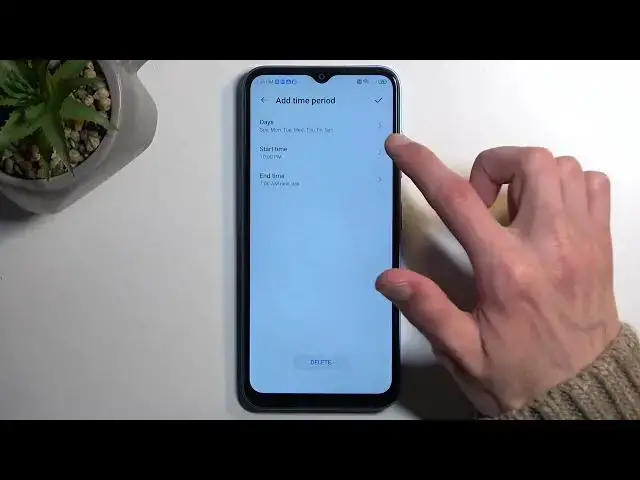
from Monday to basically Sunday. And it starts at 10 p.m. and ends at 7 a.m. You can enable this
1:51
one. You can also edit it by tapping on a text. So you can change the days of the week start and
1:56
end time. Or alternatively you can create your brand new one which again just like before you
2:02
have the same kind of options. There we go. So I'm just going to kind of mess around here. Select
2:10
any kind of options. There we go. Once you check it, it will automatically become enabled. So
2:19
whatever you have chosen this will now once it's enabled will turn on the Do Not Disturb mode and
2:24
turn it off automatically based on your provided parameters. Now you don't need to do anything
2:31
extra apart from making sure that it is enabled right here if you wanted to use schedule. Now
2:36
that being said, below that we have options for messages. So in here you can select who can
2:40
message you and you have options ranging from anyone to no one. And under calls we have the
2:46
same options. Again anyone, contacts, favorites, no one. And there is a little bit of a caveat to
2:51
this option. So let's just select that no one can call us during this mode. But there is a little
2:57
check below that. Repeated callers. So if someone calls you twice within a 15 minute period, if this
3:03
is enabled, a said person that has met these circumstances will bypass whatever you have
3:09
selected above. Now it might seem like an option that kind of defeats the purpose of the Do Not
3:14
Disturb mode, but it's an option that is pretty good in terms of emergencies. Usually people that
3:19
really want to get a hold of you that have some kind of emergency, they will just spam call you
3:23
till you pick up. And this would then fall under this requirement allowing them to reach you
3:30
Anyway, once everything is set, you can close this and you don't ever have to come back to
3:34
the settings page, assuming you don't want to change anything. And whenever you want to use
3:38
your Do Not Disturb mode manually, just find the toggle, tap on it to enable it, and that's it
3:47
Once you're done with it, you can again find the toggle once more and tap on it once again
3:50
to turn it off. And for the schedule users, just make sure that it is toggled on in the settings
3:57
and you don't need to do anything extra. So with that being said, if you found this
4:02
very helpful, don't forget to hit like, subscribe, and thanks for watching