0:00
Hi everyone, in front of me I've got Huawei Mate 50 Pro and let me share with you how to enable developer options on this device
0:10
So first of all let's enter the settings and here we have to scroll down to the very very bottom to find about phone
0:17
Now let's take a look at this second section and we have to find the software version
0:22
I know it may be quite confusing but first of all we have to activate the developer options
0:27
as they are quite advanced and usually they are not visible. So let's take a look at the software version and all we have to do right now is to simply keep tapping on it
0:37
And if you've got any kind of screen lock currently set then your device will ask you to enter it in order to confirm your whole step
0:44
And as you can see right now we are at developer so we can go back to the general settings and tap on system and updates
0:52
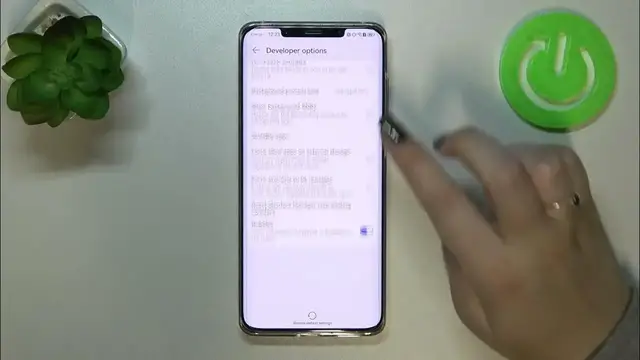
And as you can see in the last section on the very first position we've got the developer options so let's tap on it
0:59
And here we've got plenty of advanced settings which we can customize
1:03
So for example we can show surface updates, we can show visual feedback for tabs
1:08
Here we've got some options which are connected to Bluetooth, the USB and the WiFi
1:13
So overall connected to the networking, debugging and so on and so on
1:17
So quite a lot of options. And basically if you'd like to turn on the option all you have to do is simply tap on the switcher on it and then the option will be activated and applied
1:28
Maybe I'll show you another option for example party location. As you can see it is immediately applied
1:34
Of course you can turn it off the same way. And if you've got the options without the switcher so for example like here in the window animation scale just tap on it to open much more settings
1:46
So if you're done with customization of developer options and if you'd like to turn them off all you have to do is simply go back to the very top of the list and tap on this first switcher
1:57
And as you can see we've been automatically transferred to the system and updates and in this last section we cannot see the developer options as they were switched off manually
2:07
But of course no worries you can customize them again if you want to. Just go back to the software versions tab and keep tapping on it
2:14
So actually that's all. This is how to enable developer options in your Huawei Mate 50 Pro
2:19
Thank you so much for watching. I hope that this video was helpful and if it was please hit the subscribe button and leave the thumbs up