0:00
Hi friends! Today is a new video about the TikTok application
0:04
and today I will show you how to allow or block the duet option for your video on TikTok
0:17
First and foremost let's open the TikTok application guys. And here you can check
0:22
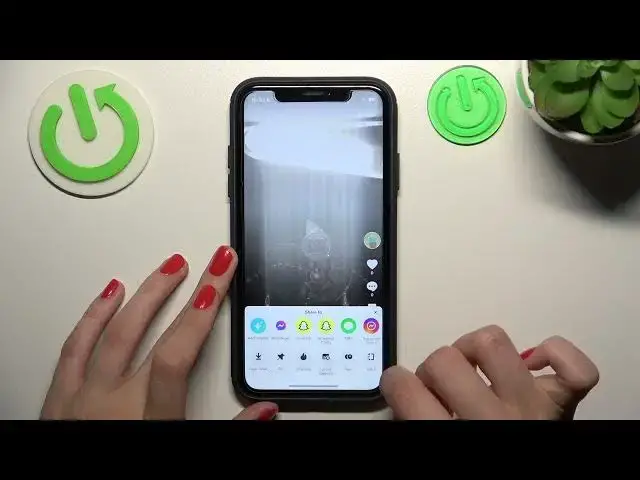
the example of this duet video on TikTok. So what does it mean that this is a duet
0:27
This option is very cool because it helps us to make the reaction to videos and create
0:33
interesting content based on other works. As you can check here you see that the screen is
0:40
divided on different two parts and each of them has the separated video. So the first one
0:48
is our work, is our video and the second one is previously created content by another user
0:57
So you can create a reaction with this duet feature and how to block or allow this option
1:03
for your video on TikTok account. So first and foremost I will go to my profile page
1:10
and tap on this plus icon to create a new TikTok. So guys I'm here and I will record
1:17
some video after tapping on this central key. So let's start one two three and four
1:26
Okay guys let's tap on the check mark and next because I'm only interested in these
1:33
settings before the uploading. So guys as you can check here we have the allow duet feature
1:40
which is the most important for us. And guys remember that after deactivating it you will be
1:49
able to create the duet with your video but you will block this option for other users
1:56
for your friends, subscribers, followers etc. But you will be able to create this content with your
2:03
works. So guys to disable this option let's tap on the toggle to make it gray and to activate it
2:09
let's make it green. I will disable this feature to show you the result after turning off and let's
2:17
pause this newly created TikTok. And after I will go to the profile page to refresh my feed
2:26
This is my new video and guys if I will tap on this three dots icon and go to the duet feature
2:36
I will have it. But be sure that another users will open the same settings and won't have this
2:44
option activated. They won't be able to create duets with your work. But if you for example
2:51
want after to enable this duet option you can go to the privacy settings here
2:58
scroll a little bit the menu and here you can find the same option like allow duet. You can allow it
3:05
for this video. Be careful guys because these settings are always saved and when the new TikTok
3:14
you will create you will have the same settings you have now. So if you have the duet activated
3:20
right now you will have it enabled when the new video uploading and in the same way if you will
3:28
deactivate the duet this option will be turned off for the new works. So you need to be careful
3:35
and control these toggles every time. So guys I hope that this short tutorial was definitely
3:42
useful. You can find a lot of other guides on our channel about the TikTok application
3:48
and other programs. And goodbye guys! Good luck