0:00
Hi everyone! In front of me I've got Hotwav Note 12 and let me share with you how to add the
0:05
fingerprint to this device. So let's start with opening the settings and here we have to find
0:14
the security option. Let's tap on it. Now let's tap on face and fingerprint unlock and before we
0:22
will be able to set the fingerprint we have to add the screen lock. Of course if you've got one
0:27
currently set you will be just transferred to another step. If not you really have to do it
0:32
right now because if for some reason the fingerprint sensor won't work then you will
0:37
still be able to unlock your device with the pattern pin or password. So just pick the option
0:42
like to use and tap on it. Let me draw... no no no let me draw the pattern. Tap on next to redraw it
0:50
and confirm. Here we have to decide what kind of notification content we want to show so it's up
0:57
to you. Just mark the option and tap on done and now we have to tap on the fingerprint. Right here
1:03
we've got the information about the fingerprint so I highly recommend to check it and then tap on
1:09
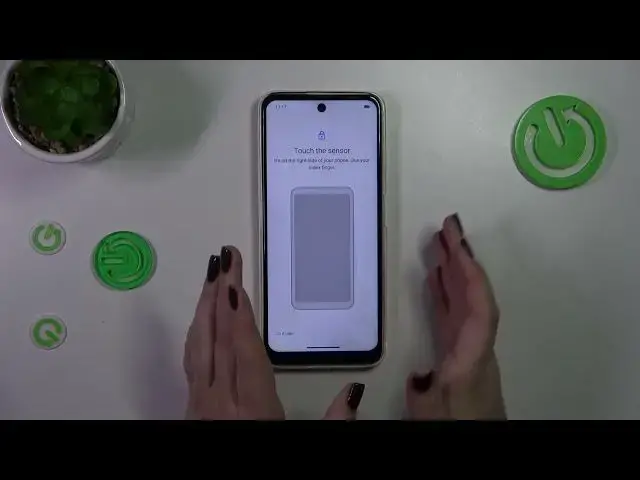
I agree. Right now we have to touch the sensor which is located on the right side of our device
1:16
on the power button right here. For some reason it is not shown... oh it is so I'm just a little bit
1:22
blind. So that's okay. So let me touch the sensor and right now we have to do it multiple times
1:29
in order to add our fingerprint fully. And to be honest to be honest I think I recommend to do it
1:36
without this case which is added to the box because it really covers the
1:48
the power button. I mean I cannot put my finger fully on it so I believe that there could be
1:57
some problems with recognition later on. All right we just successfully added the fingerprint
2:02
so let's tap on done. This is the fingerprint we just added. We can remove it or rename it just by
2:08
tapping on it and add another fingerprint and I believe that we can use up to five different
2:13
fingerprints. Let's check if it is working. So let me lock the device and let me put my finger
2:18
on the sensor and as you can see fortunately the device is unblocked which simply means that we
2:23
just successfully added the fingerprint to it. All right so that would be all. Thank you so much for
2:29
watching. I hope that this video was helpful and if it was please hit the subscribe button
2:34
and leave the thumbs up