0:00
Hi everyone! In front of me I've got the device with brand new Android 13 and let
0:05
me share with you how to add the fingerprint. So first of all we have to enter the settings and find the section security
0:16
Now let's scroll down to find the fingerprint unlock. Let's tap and as you
0:22
can see this is actually the very first step of adding the fingerprint if you do
0:26
not have a screen lock. Of course if you've got one currently set then you will be transferred to another step. If not you have to do it right now. It is
0:34
crucial because if for some reason the fingerprint sensor won't work then you
0:38
will still be able to unlock your device with the screen lock. So you won't have
0:43
to go through the whole hard drive set operation which will wipe out all of the
0:46
data. So that's important and without setting a screen lock you won't be able
0:51
to set the fingerprint also. So we can pick the pattern pin or password and I
0:56
will pick the pattern. Now we have to draw it, tap on next, redraw it and confirm
1:02
As you can see now we can decide what you want to show on the lock screen. So
1:07
we can show all the notification content, show sensitive content only when
1:11
unlocked or don't show notifications at all. It's of course up to you which
1:15
option you'd like to use. Just make sure that it is marked. I will leave the first
1:18
one so let's tap on done. And here we've got some info about the whole fingerprint
1:24
unlock. So we can use it to verify that ourselves actually to turn on this
1:31
option to sign into apps or to approve the purchases. So here we've got the
1:37
info how it works and so on and so on. So just you can read it. I will just
1:44
tap on I agree. As you can see here we've got also the information how to
1:50
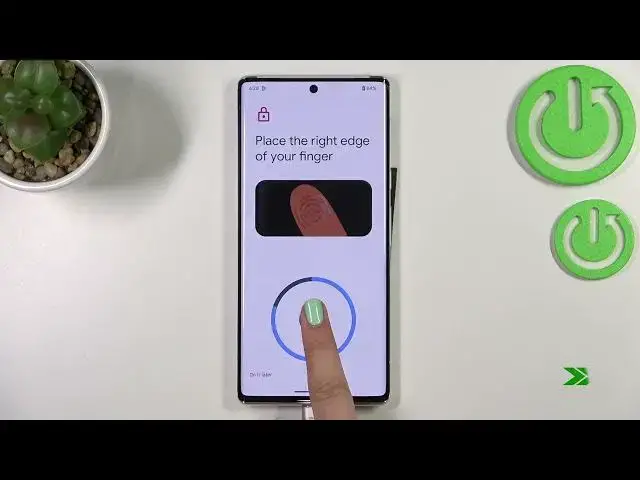
set up the fingerprint. So just tap on start and in this case and we've got
1:56
the scanner inside and actually under the screen. So just let me put my
2:03
finger on it and as you can see we have to do it multiple times in order to add
2:07
our fingerprint fully. So just release the finger and put it again
2:13
and again using different angles. Alright and as you can see we just successfully added our fingerprint to
2:23
this device. So just tap on done. Of course if you want you can tap on add
2:26
another and you will be able to add for example the second thumb or which
2:31
finger you want to. Here we've been transferred to the fingerprint settings let's say. Now here we've got our fingerprint we just added. We can
2:41
remove it if we want to just by tapping on the scratch bin icon or rename it. So
2:46
let me rename it because why not. Tap on ok and here we can add another one. So
2:52
now let's check if it is working. Let's lock our device and let's try to unlock
2:58
it. The sensor was somewhere here. Let's check. As you can see the device is
3:06
unlocked which simply means that we just successfully added the fingerprint to it
3:10
So actually that's all. This is how to add the fingerprint in your Android 13
3:15
Thank you so much for watching. I hope that this video was helpful and if it
3:19
was please hit the subscribe button and leave the thumbs up