0:00
Welcome! In front of me is a Google Pixel Fold and today I'll show you how you can enable and
0:05
set up your portable hotspot. So to get started you want to pull down your notifications
0:15
by swiping down from the top of your screen and you want to then swipe down once more to
0:19
extend the list of toggles. Now on here you're looking for obviously the hotspot toggle. So
0:25
if it's not on the first page you can swipe to the left to show you the second page and I don't
0:30
see it on either page. So in this case we can click right here on this pencil
0:37
and this toggle should be somewhere between the toggles that are deactivated hopefully
0:45
Now there we go so it's right here hotspot. Once you see this toggle you can hold it
0:50
and drag it to the top. I'm going to place it somewhere lower. There we go good enough and we can go back and now it should
0:59
be accessible on one of the pages. So for me it is right over here. Now when you see this toggle
1:07
first time around you want to hold it. This will take you to the settings where you can customize
1:12
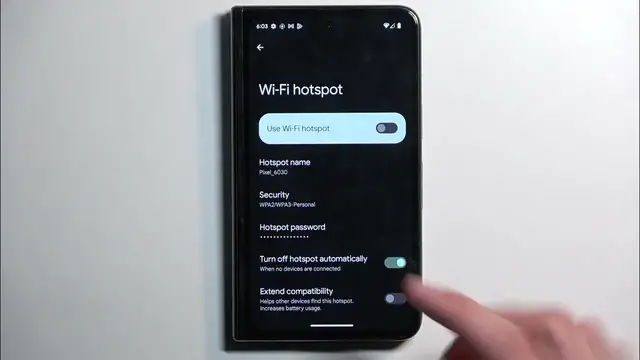
how or what's the password for it and other things. Now let's obviously start off with the
1:18
password because this will be randomly generated and by default you can see it's not a very fun
1:25
password to type in. I recommend removing it and setting up your own new password. It will need
1:30
to have at least eight characters in length that can be letters or numbers. I'm making mine super
1:35
easy. And that's really the only thing that I recommend changing. Other things will be the
1:42
hotspot name which you can see right over here. By default it's the name of the device with some I
1:47
guess serial number or whatever the number is supposed to be. So it's pretty easy to find and
1:54
then a couple additional mentions would be the turn off hotspot automatically. This is enabled
1:59
by default and I do recommend keeping that on because this will save your battery a little bit
2:04
So when you're using your hotspot once you're done with it you probably will forget to turn
2:09
off the hotspot on your device. And this will basically in normal circumstances mean that
2:15
the hotspot is running in your background without you using it. So it's consuming more battery for
2:20
no reason. But with this setting after like 10 or 20 minutes of detecting that no device is
2:25
connected to the hotspot it will turn it off saving your battery. And then we have extended
2:32
compatibility which will include I believe 2.4 gigahertz Wi-Fi band meaning that older devices
2:38
can now connect to it as well. So if you have a problem where you enable your hotspot like this
2:43
or obviously from here so it's on right now and you look on your other device that you try to
2:49
connect to this hotspot with and that hotspot sees no Wi-Fi by name that you have right here
2:55
then you might want to toggle this on. This will add an additional AP band right there that would
3:01
support your old device. Anyway so once you set up the hotspot you don't actually have to go back
3:08
there ever again assuming you remember your password obviously. And whenever you want to
3:13
use it you can just from now on quickly toggle it on and off from your toggles right here
3:19
And that's it. So if you found this video helpful don't forget to hit like
3:23
subscribe, and thanks for watching