0:00
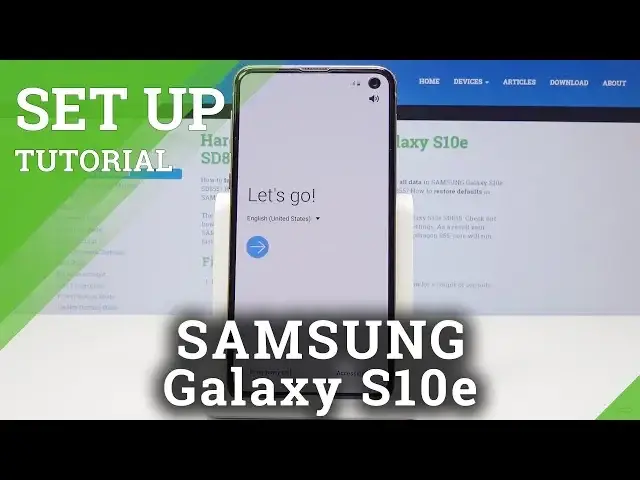
Here I have Samsung Galaxy S standing and let me show you how to activate this device
0:11
So at the very beginning let's start by using the welcome panel. Here you should choose your desired language, as you can see this is the full list of available
0:19
languages that you can use on your device. In my case let me select English for instance from United Kingdom, tap OK
0:26
Here you can also use accessibility or emergency calls if you need something
0:30
If not let's simply tap next. You can connect your device to mobile network but it's not necessary, you can tap next without it
0:37
Here let me tap agree to the end user license. The other stuff is optional so let me just skip it
0:45
Tap next. Here you can also bring your old data by using the wireless method or some USB connector
0:53
In my case let me skip it for now, let me have a fresh start without any data
0:58
Now you can use the WiFi connection, it's not necessary, you can bypass this
1:03
But in my case let me connect my device to my WiFi, it's always a good idea to have the
1:06
internet access. Now let's tap next. The phone is looking for any updates so let's wait a few seconds
1:21
And the phone is checking info. Here you can sign in into the Google account so let me do it
1:28
You can of course use the skip button and just go next without the Google account but
1:33
the Google account enables a few interesting stuff so let me just connect my device
1:40
Alright tap next. Now it's time to enter the password so let me do it
1:49
Alright here you can tap go or next. Tap agree in terms of service and privacy policy
2:00
The device is getting account information
2:10
Here you can use some backup to restore or you can choose don't restore, you can activate
2:15
your device without any backup. If everything is correct with your date and time configuration let's choose next
2:22
You can protect your device by using face recognition, fingerprint, pattern, pin or
2:26
password or you can choose not now and do it later in settings
2:30
Tap skip anyway. Here you can decide either you would like to enable or disable backup to Google Drive
2:36
Use location, allow scanning and send usage and diagnostic data. In my case let me enable all of them
2:42
Tap accept. Let me don't review these additional apps and let me tap ok here
2:50
The device is adding the finishing touches. Let's wait a few seconds
2:59
Alright here let me skip the Samsung account. Tap skip. Tap finish
3:04
And as you can see the home screen just pops up so basically everything went well
3:08
Thank you for watching. Please subscribe our channel, leave thumbs up under the video
3:13
And I will see you in the next video