0:00
Hi everyone, in front of me I've got Oppo Find X5 Lite and let me share with you
0:06
how to enable, how to customize the night light or eye comfort mode on
0:12
this device. So basically we will start with the customization of this mode and
0:20
after that I'll show you much faster access to it. So first of all let's enter
0:24
the settings and here we have to enter the display and brightness. Now let's
0:30
scroll down just a little bit to find eye comfort. Let's tap on it and before
0:35
we will be able to customize it we have to turn it on. So just tap on the switcher and as you can see the screen turns a little bit yellowish or amber
0:43
and it is in order to filter the blue light. What's more it will be much much
0:47
easier for you to look at the screen at the dim light. So if you prefer to use
0:51
your device at night then this mode is totally for you. So first of all let's
0:57
begin with the screen color temperature. We can change the intensity of the
1:02
feature. By going to the left we can make it much much cooler and currently we've
1:07
got this option set and by going to the right we can make it much much more
1:11
warmer in real life. It's almost orangish. Here we've got the display effects so
1:16
we've got the color which simply means that your device will be a little bit
1:20
yellow but still the colors will be saved. So as you can see for example on
1:25
the switcher it is still green or we can set black and white and as you can see
1:30
from now on your device will be monochromatic. It's of course up to you
1:35
which option like to use. I will stick with the color or maybe black and white
1:39
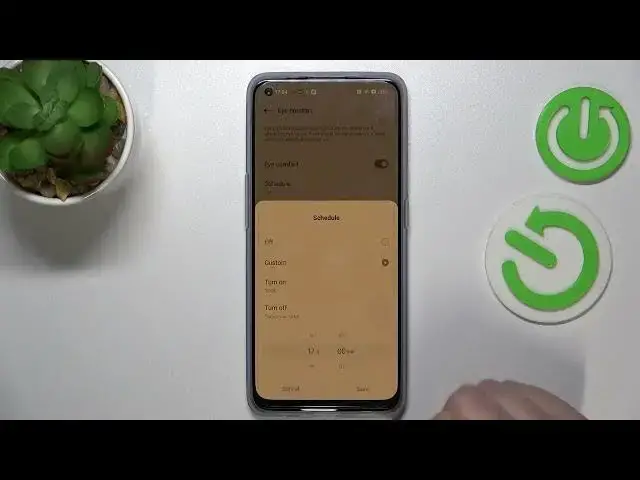
why not. Here you can schedule that feature so you can custom it. Just
1:46
tap on custom and as you can see here you can pick the turn on and off time
1:51
So basically you can decide when it will start and when it will be turned off
1:57
For example something like that so let's tap on save and as you can see we just
2:02
immediately got back to the normal state of the device of the display. It is of
2:07
course because we are not between the start and the end time currently. But let
2:13
me actually turn it off. So basically this is the whole customization of this
2:18
mode and now I can show you much faster access to it. So all you have to do is
2:23
simply unroll the top bar and here we have to find this icon for the icon. So let's
2:28
tap on it and as you can see actually immediately this screen will be again
2:33
yellowish and displayed in the monochromatic option because I've chosen it. Of course you can turn it off the same way. So actually that's all. This is
2:42
how to enable the eye comfort mode in your in your Oppo Find X5 Lite. Thank you
2:48
so much for watching. I hope that this video was helpful and if it was please
2:52
hit the subscribe button and leave the thumbs up