0:00
Welcome! In front of me is the Oppo A17 and today I'll show you how we can
0:05
enable and set up your Do Not Disturb mode. So to get started put on your notifications, extend the list and
0:16
somewhere in here you'll find the toggle for Do Not Disturb mode. If it's not on
0:20
the first page scroll to the other side and you'll find more of the
0:26
toggles and I can already see it right over here Do Not Disturb. Once you locate
0:31
this toggle first time around hold it. This will quickly take you to the
0:35
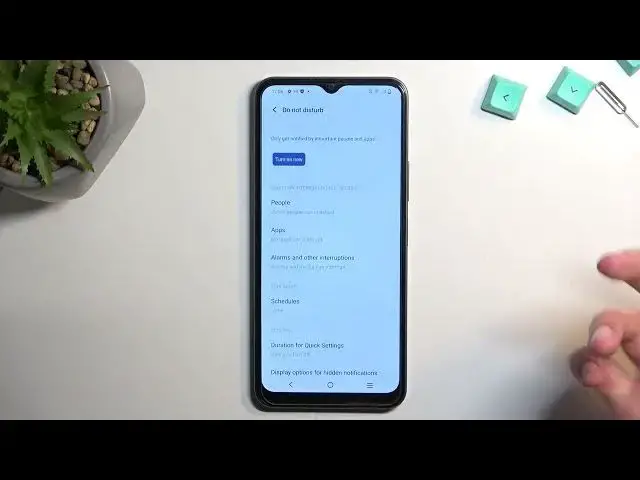
settings where you can customize how it will function. Now I'm gonna go over the
0:39
primarily like more important options like schedule. So in here you can set up
0:44
a specific schedule. There's two pre-made ones but you can also create your own
0:49
I'm just gonna touch upon one of them that is already created. So let's select
0:53
sleep, you can edit it and in here you have day of the week so you can choose what day
0:57
of the week it will turn on. Then you have start and end time. And once you set
1:03
it up obviously you can set it up. Once you set up just enable it right here if
1:07
that is what you want to use the schedule. This will obviously enable
1:11
itself automatically at your provided schedule and you don't have to do
1:15
anything. But for everybody else who wants to use their Do Not Disturb mode
1:20
just occasionally maybe you have like a random meeting at work and you just
1:24
need to enable it for that time being. Then you can set up everything and I'm
1:29
gonna get to how you can enable it but let's first set it up. So apart from the
1:33
schedule you also have people. In here you can select who can call you and message you. And we have also apps and alarms and other interruptions but
1:41
people will be probably the most important one considering messages and calls will be some of the most distracting things. And you have duration
1:52
for quick settings. This is the last thing and this will define what happens
1:56
when you press on the button. We have by default always set it to be until you
2:00
turn it off but you have also time specific. If you set it right here right
2:04
now for a specific amount of time so for instance four hours and I confirm this
2:09
every time I press on the button it will always turn it on for the exact four
2:13
hours. I can turn it off obviously before that time but in generally after
2:17
four hours it will disable itself. And honestly I never actually thought about
2:24
this before but right now thinking about it like this I do kind of tend to say
2:30
that you might want to remember about turning it off otherwise it will be running in the background indefinitely. But what you could do if you do want to
2:39
for instance have it for a long period of time but also have the peace of mind that maybe you wake up tomorrow and people are still again able to call you
2:47
then maybe set it up for like something like eight maybe ten hours and whenever
2:51
you enable it even though you forget about it most likely whatever reason you
2:55
enable it for after ten hours it's already has it has already passed and it
3:00
will then turn off automatically after that time. So this is probably the best option. You can also set up ask every time which will bring when you whenever
3:09
you press the toggle and the notifications it will bring these two
3:13
options to you every time you press on it and you will also have the option to
3:17
to change set the timer on it every time you press on it. But here I'm gonna stick
3:23
with this one for ten hours okay and it will always enable it for the exact ten
3:27
hours. Obviously you can touch upon other settings and change them to your liking
3:32
but these would be some of the more important ones. And whenever you want to
3:36
enable your do not disturb mode find the toggle press on it and that's it. It
3:41
also gives me the time till it till which it's going to be running so Thursday 0308 I guess it's the date. Oh wait that can't be the date
3:55
Is it like 3 a.m.? Yes it could be. Anyway so there we go that's basically it. Now
4:05
like I said if you went the manual route where you didn't select the timer
4:10
or ask every time you will probably want to remember about turning it off so to
4:14
do so you just find a toggle tap on it once more and this would turn it off and
4:19
everything would go back to functioning normally. Now with this being said if you
4:22
found this very helpful don't forget to hit like subscribe and thanks for watching