0:00
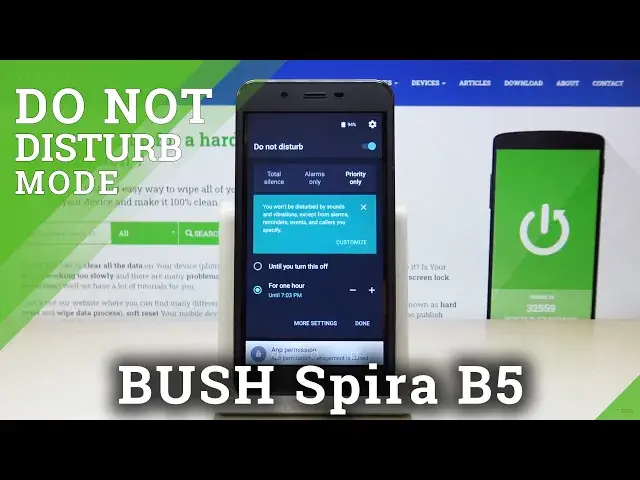
Here I've got Bush Spira B3-5 and let me show you how to activate Do Not Disturb mode on
0:08
the following device. So at first you have to slide down the upper bar and here you will notice DND icon
0:15
It's right here. Just click on it and now pick the option that you would like to apply, so you can pick either
0:20
Total Silence, in which all sound will be blocked, then Alarms Only, so only alarms
0:26
will be allowed, and then Priority Only, in which you will not be disturbed by sounds
0:31
and vibration, except from alarms, reminders, events and colors you specify. So let me choose for example Alarms Only, then let's pick the period of time, so you
0:41
can either choose it here by entering or you can select until you turn this off, so then
0:45
you will have to manually turn it off, and then just click on Done
0:50
And that's it. As you can see, we are currently in DND mode, so here you can see that it's active, and
0:55
also the DND icon is in the upper bar. So if you slide it down one more time, you can switch off Do Not Disturb mode smoothly
1:03
by clicking, but also you can go to the More Settings, smoothly click on More Settings
1:11
and here you can add some automatic rules or personalize the priority-only allows, so
1:16
let's start with the first tab, which is Priority Only allows, and here you can specify the
1:20
priorities, it's for this priority-only mode, so you can turn on or off reminders, events
1:27
you can allow messages from no one, let me click one more time, from anyone, contacts
1:36
only, start contacts only or none of above, let me pick contacts only, and then you can
1:41
specify the colors that would be allowed, but I will pick none of them, and also here
1:45
you can activate Repeat Colors function, so if the same person will call you a second
1:49
time within a 15-minute period, then your device will allow it, just click here to activate
1:54
it, and then the second tab is Automatic Rules, so smoothly click on it, and now you can add
2:04
some automatic rule, to do it just click on Add Rule, and now enter the name, it will
2:12
be Hard Reset, and it can be Event Time Rule or Event Rule, I will pick Time Rule, tap
2:21
on OK, and now you can specify the days, so for example let me choose Monday, Tuesday
2:27
Wednesday and Thursday, tap on Done, and then period of time, so it can be active between
2:33
11pm and 6am next day, and finally just pick the mode, so you can pick either priority-only
2:41
alarms only or total silence, and I will pick total silence, and that's it
2:46
Now this rule is active, so on Monday, Tuesday, Wednesday and Thursday between 11pm and 6am
2:53
next day, total silent mode will be active, then you can switch it off by tapping on this
2:57
switcher, or you can permanently delete some rule by tapping on the particular rule, then
3:03
click on the bin icon and confirm that you would like to remove it by tapping on Delete
3:07
as you can see it disappeared. So this is it, this is how you can activate and personalize the Not Disturb mode in your
3:12
device, thank you for watching, please subscribe our channel and leave the thumbs up