0:00
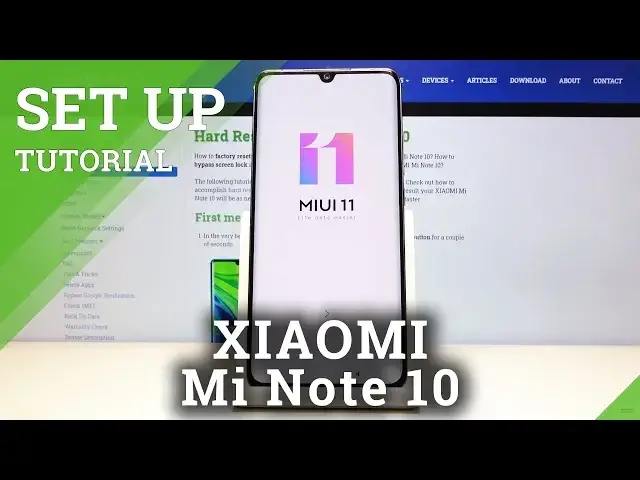
Welcome! In front of me is a Xiaomi Mi Note 10 and today I'll show you how to go through the setup process of the device
0:12
So when you first boot up the device for the first time, you'll be presented with this screen
0:17
So let's start off by tapping on the arrow right here and choosing our language
0:24
Tap on the arrow there and you can now choose your region
0:28
Now this will also change the time zone that you're in, so I'm just going to keep it as it is right now
0:34
I'll give you a message setting region. Then you have network connections and you can connect to network or completely skip this
0:43
I will actually opt into skipping it, so I save a little bit of time
0:49
And then you have terms and conditions, so we need to accept the first one
0:53
You can deselect the second one for the face emoji and stuff like that
1:01
And then next thing you'll see is the insert SIM card. So this is also completely optional step
1:07
You can insert the card right now or completely after the setup and this will change basically nothing
1:16
So I'm just going to skip this. Then you have Google services, so you can read what each one of them does and for instance deselect it
1:24
And once you have set it up as you want, tap on accept
1:30
Then you have set password, so this is also optional. If you don't want to protect your device, you can just tap on skip this step
1:37
If you want to add a fingerprint, you will also need to add another way of unlocking
1:42
So that will be either pin, pattern or password. Or you can just set that without the fingerprint
1:49
So I'm going to choose to set up one thing. I'm going to go with the pattern
2:00
So draw unlock pattern. Then redraw the same pattern once more. And let's tap on the arrow to complete it
2:11
And that's it. Now we have a set pattern. Additional settings. You have more things that you can opt out of here
2:19
Location. Allow apps to access your location. Now usually when you install apps, your phone will also tell you if the app needs access to it
2:32
So you can then grant it. So I'm not sure why it's actually here
2:36
User expanded program. So you can view details. So it will also give you a more comprehensive overview of what it does exactly
2:45
So you can read all of them and decide what you want and do not want
2:50
And then tap on the arrow right here. Choose a theme. So you can choose between the classic and limitless
2:58
And the only difference in them is the way the icons look like and the base wallpaper that you will have
3:04
So the classic one looks more like an Apple device. While the limitless has more shapes on the icons
3:13
They are not just squarish. So I'm just going to not bother changing it at the moment
3:18
So there we go. Tap on the arrow and we're almost done
3:22
And as you can see we're now fully done with the setup
3:35
So if you found this video helpful, don't forget to hit like, subscribe and thanks for watching