Up next in 10


How to use secret codes in MEIZU MX5? Whoch secret codes works on MEIZU MX5? How to open secret menu in MEIZU MX5? How to get access to hidden features in MEIZU MX5? How to get access to hidden options in MEIZU MX5? How to open hidden mode in MEIZU MX5?
In order to get access to hidden optons and modes such as Testing Mode, Debug UI, Callendar Info and other you should use the following secret codes. So check out the app's statistics, device specification or battery info in your tablet.
More Info:
http://www.hardreset.info/devices/meizu/meizu-mx5/hardreset/first-method/
Show More Show Less View Video Transcript
0:05
MX five. And let me show you how to use secret codes on the following device
0:09
So A T the very beginning, let's open the phone icon right here to open the phones
0:14
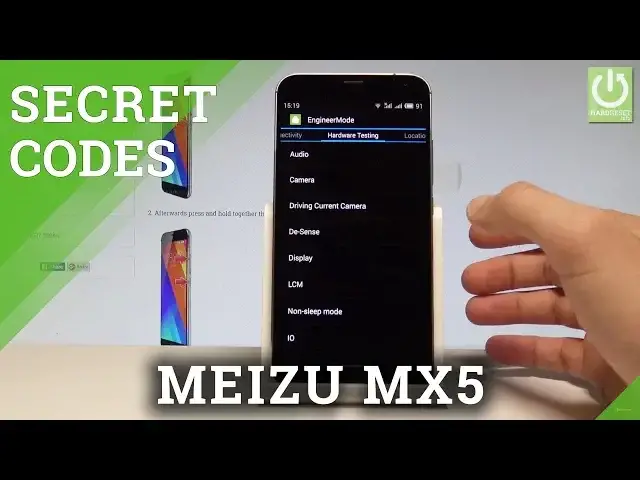
The other end now you have to activate the keypad. So now let's open the engineering mode
0:20
Let's use the following code star, pound star, pound 36 four
0:31
6633 hash star hash star. As you can see the following engineer
0:40
mode just pops up here. You can perform some tests, you can make sure that your device is performing well
0:45
So under telephone, you can choose how to answer an internet test, brand mode
0:50
the LT information modem test. So let me for Exa Mples the how to answer
0:55
Let's tel and you can test it. You can also go back and choose connective connectivity right here and you can choose
1:04
Bluetooth, Wi Fi, the Wi Fi display and other stuff as well
1:08
You can also perform the hardware testing. So you can for Exa Mples
1:12
choose audio and for Exa Mples, you can choose the uh loudspeaker mode that
1:21
I've said set again and that's it. You may also go back
1:28
let me go back. You can also choose the headset mode, the loudspeaker mode
1:34
debug U I audio loger, speech locker and other stuff. So here you can also test the Ca Mera display
1:40
memory power SD card USB, sensors, video and other stuff. You may also go to location where you can find for exa Mples the location
1:49
based service. The next step is log and debugging here you've got for exa Mples debug UTS modem warning setting and other stuff
1:58
And the last T is others here, you can choose the setting F USB AC M and other settings that you can set up
2:06
So this is the engineering mote. So you can only navigate here by typing appropriate options
2:11
Let's go back to quit this mode and this time, let me open the android testing menu
2:16
So here you have to use the following code star, pound star
2:20
pound 463 £6 star, pound star. And as you can see the following android testing menu just pops up here
2:29
You can navigate by tapping the appropriate options. Let's choose phone information
2:32
You can read such stuff as a number, phone number, current network
2:37
the signal strength, you may run a pink test or you can choose more key in order to select radio but views I address
2:43
book, view, fix, dialing numbers, get PDPS or enabled data connection. Let's go back and here you have to choose battery information here
2:51
You can read the battery status power plug, battery level, battery, battery
2:56
health, battery temperature time. Since boot, you may also go back, choose Wi Fi information
3:01
When you can select the Wi Fi A. Here, you can disable network disconnect network enable network
3:06
get connection info. Let's go back again. Choose the Wi Fi status
3:10
Here, you can refresh your starts, read the following information. You may run a pin test as well
3:16
What's more you can also choose the Wi Fi config. And here you've got the configured networks on your device
3:21
You can read the full specification about your networks. Let's go back again
3:26
Let me quit that ST menu. And this time, let me show you how to open the calendar info
3:32
So let's use asterisk hash asterisk hash 225 hash asterisk hash asterisk as you can see calendar
3:41
info, just pops up. You can read about contacts, events, holidays and other stuff
3:47
This calendar info is connected to our Google account. Let's go back and this time let me open Google play service mode
3:54
Let's use asterisk hash asterisk hash 426 hash asterisk, hash asterisk
4:04
As you can see Google play service just pops up here. You can choose events, disconnect
4:08
connect pink status. You can read the specification about the services or you may also go back by using the back swiping
4:16
So this time let me open the U I. So let's use asterisk hash asterisk hash 759 hash
4:25
asterisk hash asterisk. That's it. Sometimes the debug U I may pops up in front of you if you have the access to this mode
4:34
and A T the end, let me show you how to check the my number by using the secret code
4:39
So let's use asterisk hash 06 hh hash and this is the I A number
4:45
Let me input this again. It was asterisk hash 06 and hash and this is the A number
4:51
So that's it. Now you can go back and start using your device in a normal way
4:56
Thank you for watching. Please subscribe our channel. Leave thumbs up under the video
Mobile & Wireless
Mobile Apps & Add-Ons
Mobile Phones
Science
Other