0:00
Welcome! In front of me I have Apple Watch Ultra 2 and I'm gonna show you how to start the workout on this watch
0:10
First we need to wake up the screen on our watch and you can do it by pressing any of the buttons
0:15
After you wake up the screen, you can press the ground button to open the menu
0:19
Now scroll through the menu and find the workout icon. It looks like this. Once you find it, tap on it to open the workout menu
0:27
And here we have the list of workouts you can select. So find the workout you want to start and once you find it, tap on it
0:36
Then tap on continue and it's gonna start the countdown and after the countdown is finished, it's gonna start the workout
0:44
And once the workout starts, you will see the time goal. You will see the statistics like active calories, total calories, heart rate
0:52
You can also scroll down to check the heart rate zones and
0:57
the activity statistics. You can also swipe left or right on the screen to
1:05
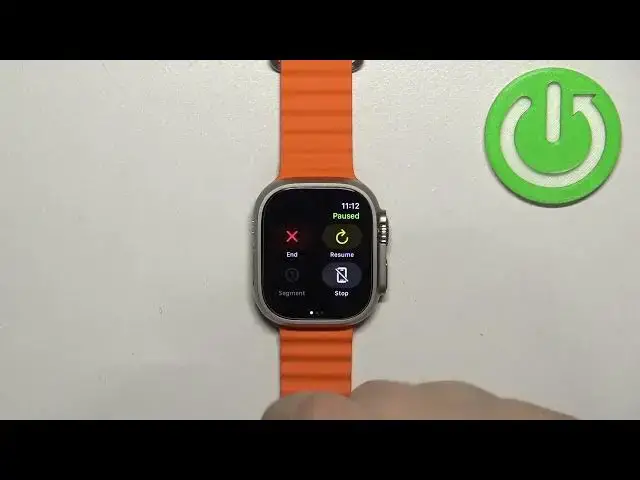
access different menus. If you swipe right on the screen, you will open the menu here and you can pause or
1:12
resume the workout. You can also stop the workout. You can also end the workout and you can
1:22
mark the segment basically. Okay, and if you
1:33
swipe left on the workout menu, you will open the music controls
1:38
And if you have any music on your watch and headphones connected, you can basically pause the music
1:43
play the music, skip or go back to different songs. Okay, and if you want to stop the workout
1:51
swipe, like I said before, swipe right and then tap on end and you can end workout
1:57
by tapping on end workout. By default, you can also start the workout or open the workout menu by pressing the action button right here
2:08
But it could be changed later on if you want to. Okay, and that's about it
2:12
That's how you start the workout on this watch. Thank you for watching
2:16
If you found this video helpful, please consider subscribing to our channel and leaving a like on the video