0:00
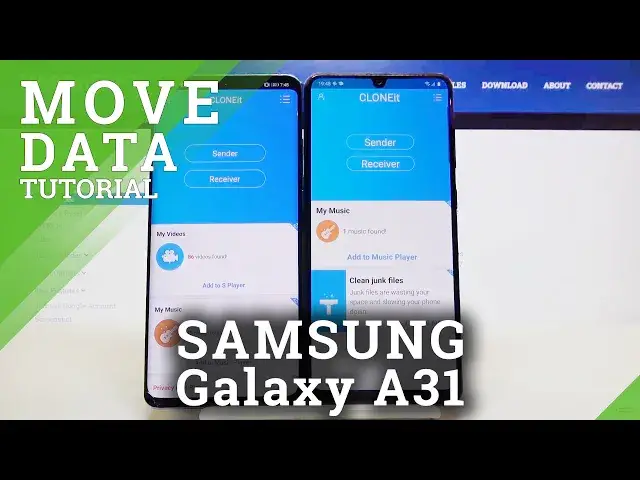
Welcome guys! In front of me I have Samsung Galaxy A31 and I want to show you how you
0:11
can transfer data from Android smartphone to your new Samsung Galaxy. For the first
0:16
we have to get application to transfer data and I can recommend you to download this application
0:21
So move for the Play Store and find this one, click on install. Of course do the same on
0:28
this smartphone, the second smartphone and as I said at the start that I have in front
0:36
of me Galaxy A31 but of course to be honest there is also the second smartphone. Now let's
0:41
open this application, click allow. Read the privacy and click on agree. Click sender on
0:53
Android and resaver on your Samsung. Click search again and if you get any request for
1:01
the permissions you have to accept all of them. And right now we have to click on this
1:06
Android share icon and as you can see we have two ways to connect. We can scan this QR code
1:11
but also we can input this password manually. So you have to pick your way. I'm going to
1:17
scan the code. To do it properly you have to put the frame into the QR code
1:24
Accept the request on your Android and right now if you want to send everything you have to click
1:36
on all of these icons then click start and all of data will be sent. Here we get also the estimated
1:44
time, there is 60 minutes and also the size of all of our data it's almost 11 gigabytes so I
1:51
don't want to wait that much. So I'm going for the details and I will send I think that I want
1:58
to send some music maybe this three songs. Click start, okay and as you can see it's finished. So
2:11
that's how it looks. Thank you guys for watching, leave thumbs ups, comments and of course remember
2:19
to subscribe our channel. See ya