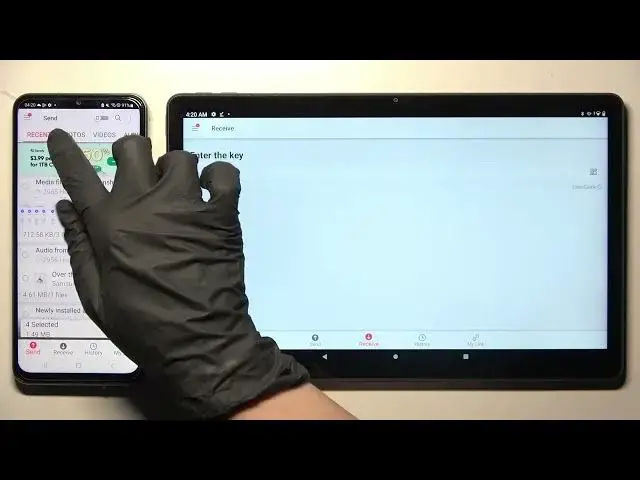

Transfer files from Samsung Device to Lenovo Tab P11 Plus
Jul 25, 2024

Check more info about LENOVO TAB P11 PLUS :
https://www.hardreset.info/devices/lenovo/lenovo-tab-p11-plus/tutorials/
To transfer files from a Samsung device to a Lenovo Tab P11 Plus tablet using the Send Anywhere app, follow these steps:
Make sure both devices are connected to the internet and are within range of each other.
On the Samsung device, open the Send Anywhere app.
Select the files you want to transfer. You can do this by tapping on the "Send" button and selecting the files from your device's storage.
Once you have selected the files, tap on the "Send" button. This will generate a 6-digit key and a QR code.
On the Lenovo Tab P11 Plus, open the Send Anywhere app.
Tap on the "Receive" button.
On the Samsung device, tap on the "Send" button again. This will bring up a menu with different options for sending the files.
Tap on the "Scan QR code" option.
Use the Samsung device's camera to scan the QR code displayed on the Lenovo tablet.
The Samsung device will automatically send the selected files to the Lenovo tablet.
Note: The exact steps may vary depending on the version of the Send Anywhere app you are using and the specific devices you are working with. If you have any trouble transferring the files, you can try searching for specific instructions online or refer to the user manual for your devices.
How to move files from Samsung to LENOVO TAB P11 PLUS ?
How to quickly transfer files beteween Samsung and LENOVO TAB P11 PLUS ?
Best way to send files from old Samsung tablet to LENOVO TAB P11 PLUS ?
How to migrate Samsung to LENOVO TAB P11 PLUS ?
#LENOVOTABP11PLUS #TransferFIles #Samsung
Follow us on Instagram ► https://www.instagram.com/hardreset.info
Like us on Facebook ► https://www.facebook.com/hardresetinfo/
Tweet us on Twitter ► https://twitter.com/HardResetI
Support us on TikTok ► https://www.tiktok.com/@hardreset.info
Use Reset Guides for many popular Apps ► https://www.hardreset.info/apps/apps/
Show More Show Less