0:00
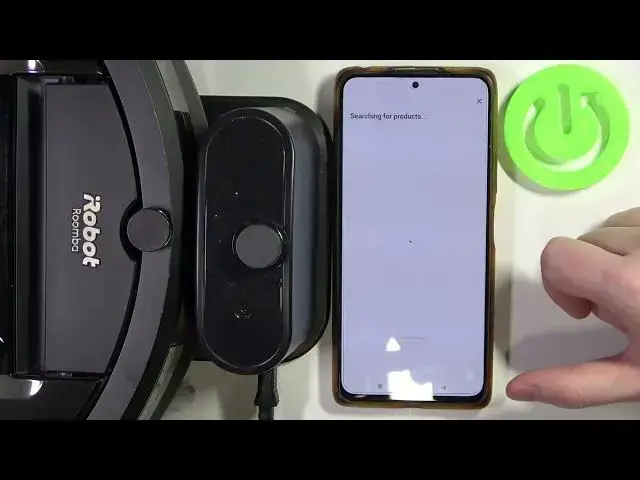
Hello! In this video I want to show you how to fix an error C637 for iRobot Roomba
0:12
To do this first it will appear when you connect your robot to the app and what you can do is
0:20
basically relaunch the app. So fully close it like I just did with the app center on our phone
0:27
and then we can open the app again. And after that you will see your Roomba right here and we can perform the setup
0:39
And this should fix the issue and this will basically reset up your robot and we'll need
0:46
to go through that process again. So you need a charging station, robot and Wi-Fi password
0:53
and make sure that your Wi-Fi is 2.4G since 5G networks doesn't support that specific robot
0:59
that I have. It's J7+. Now let's click on get started and we'll need our charging station
1:06
set up somewhere where there's Wi-Fi connection. I have it right here so it should work fine
1:12
Then we can continue, connect it to the Wi-Fi and at the meantime we'll need to enter a Wi-Fi
1:19
pairing mode on our robot by clicking on power button once, then click on the home and spot
1:26
button at the same time to enter Wi-Fi connection mode. You'll hear the chime and then we can move
1:33
on with the phone setup. Yes, continue. Enter the password for Wi-Fi and make sure that's the right
1:42
password. And also if you want to change to different network you need to do it on your
1:51
phone right here. Just switch to the Wi-Fi that you want to connect your robot with
1:59
Now it, as I said before, it asks for the home and the spot button. Let's click on that again
2:08
just make sure. We pressed the button so let's continue. So here's our robot ready to connect. Click on the connect button
2:20
So now we can continue. Name our robot
2:40
Okay, so it's done. There's the introduction. I'm just gonna skip through that to see if the error
2:45
is gone. And yep, the error is gone and now we can start using the robot. And that's it
2:55
for this video. Hope you like it. Please consider subscribing to our channel, leave a like and a