0:00
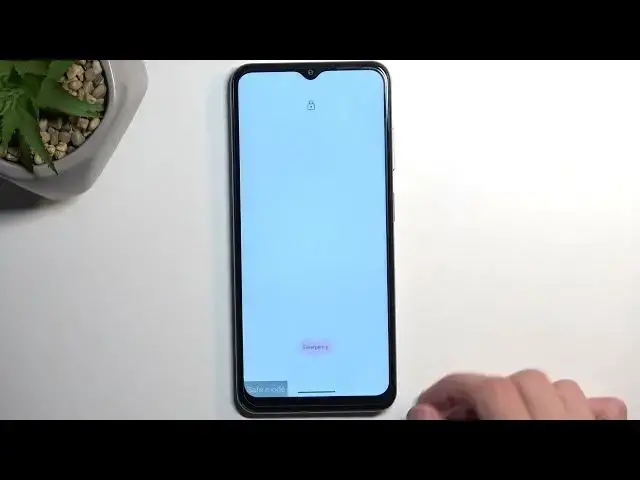
Welcome! In front of me is a Nokia G42 and today I will show you how you can boot this device into
0:06
safe mode. So to get started you will want to hold your power button
0:18
Press and hold power button to... no we don't want assistant, we want..
0:23
Come on, let's show it to me. Okay so we get to press volume up and power button because we got to be quirky
0:40
Cool so let's do that now. There we go. So power button, volume up, we're gonna select
0:46
power off. So you want to hold it and when you hold it it will then show you this option
0:53
reboot to safe mode. So do you want to reboot into safe mode? This will disable all third-party
0:57
applications that you have installed. They will be restored when you reboot again. Let's confirm it
1:04
And when the device boots up, basically any app that we have installed ourselves
1:08
will be temporarily turned off so neither you nor the device will be able to run it at all
1:13
And obviously this is designed for troubleshooting your phone so it's not really used to use the
1:20
device in safe mode normally because most of the features of the device will be disabled there
1:28
Let's give it a second for it to actually boot up and you can then see how that looks like
1:36
So here we go, we have a little watermark right at the bottom, safe mode. And once the device
1:42
boots up widgets will not work even though they come installed with the device. We have a bunch
1:47
of applications that come installed with the device that also will not function which you
1:50
can define them because they become monochrome or semi-transparent. I don't think they became
1:56
monochrome here. Oh no, they did. So as you can see Netflix instead of being black and red it's
2:03
now just kind of grayish. So you can see that it's looking a little bit different than typically and
2:11
if you try to open it up it gives you this pop-up that downloaded apps disabled in safe mode even
2:15
though things like wallet weren't downloaded they came with the device but I think it's basically
2:22
downloaded by or the phone considered considers it a downloaded by the manufacturer rather than you
2:30
So yeah there we go. Now once you're done with this mode and you want to go back to normal one
2:35
then again hold the power button and volume up and I'm gonna select restart. Once the device
2:41
boots back up again it automatically goes to normal mode. Now with that being said if you
2:47
found this very helpful don't forget to hit like, subscribe and thanks for watching