Up next in 10


REALME Narzo 50 Tutorials:
https://www.hardreset.info/devices/realme/realme-narzo-50-5g/tutorials/
Today we have something really special for you - we want to show you the best tricks you can use on your REALME Narzo 502. We present the unusual tips for REALME Narzo 50. Use great features and useful settigs for REALME Narzo 50. Become a pro user of REALME Narzo 50. A few way to get more out of REALME Narzo 50.
#TopTricks #Tips #RealmeNarzo50
Follow us on Instagram ► https://www.instagram.com/hardreset.info
Like us on Facebook ► https://www.facebook.com/hardresetinfo/
Tweet us on Twitter ► https://twitter.com/HardResetI
Support us on TikTok ► https://www.tiktok.com/@hardreset.info
Use Reset Guides for many popular Apps ► https://www.hardreset.info/apps/apps/
Show More Show Less View Video Transcript
0:00
Welcome, in front of me is a realme Narzo 50 and today I'll show you a couple
0:05
tweaks and tricks you can do on this phone. So to get started we're gonna begin with the dark mode which can be found under
0:16
the settings, display and brightness and in here you have the light and dark
0:21
along with a neat switch below that to auto switch which is defined by
0:25
basically time. So this will give you what I would consider best of both
0:29
worlds. It will switch to dark mode during the nighttime and keep it in light mode during the daytime which is what I would consider a very good option
0:38
here. Now moving on to the next option it's going to be the entire section of
0:43
personalization right here. Now in this tab I can change things like well
0:48
wallpapers but let's be honest no one gives a crap about wallpapers at least
0:53
well it's not a decent trick, none of them are. But yeah in here as you can see
1:00
we have a bunch of other options for instance like app layout, icon styles
1:04
colors, fonts and notifications shapes. So the most part it changes the colors and
1:12
for instance like the settings how things are color-coded and also majority of the things in your little notification tray right here with all
1:19
the toggles. You can change the icon style though this is just a layout so
1:24
we can change size of them as you can see you can make them way smaller I can
1:29
decrease the name, the font size I guess. I believe you can also completely remove
1:35
it. There we go. So you can see if you set it to the smallest one it hides it. Then
1:41
you can also choose different icon packs. If you have some installed I believe
1:45
they will show up here. These are just the pre-loaded ones that come with the device you can choose between them as well if you prefer some of the ones that
1:53
are here. And going back in here obviously we have the like I mentioned
1:58
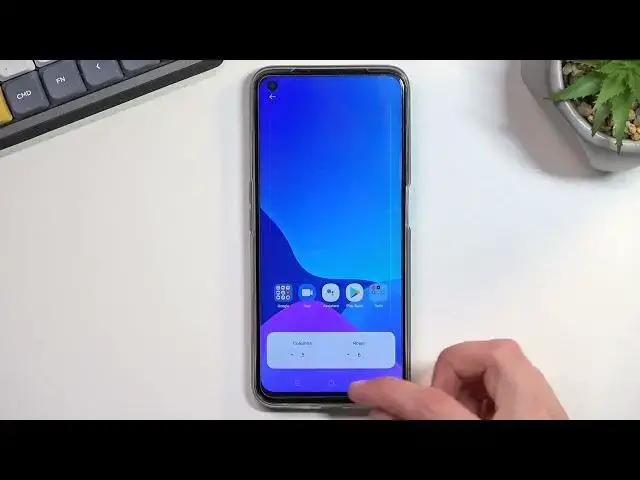
app layout so this allows you to select how many rows and columns you have. Though
2:03
it looks like by default it sets to max so five and six you can't go any smaller
2:10
Colors like I mentioned just changes the colors. Now we have a couple like
2:14
pre-made ones right here which you can tap on and it automatically gives you this visual indication how and where it will affect it. But you can also change
2:25
it up yourself if you want to. This will only change it to a single color
2:29
everything unlike these options which obviously give you multi-color options. And lastly we have the shapes right here of the toggles or actually this would be
2:45
the last one the fonts. Again only two fonts accessible right here but if you
2:50
find some that you want to install I believe they will show up here as well
2:54
Anyway moving out of here to the next option is going to be the home screen so
2:59
oops I just closed the settings. So let's go into the home screen and lag screen
3:05
And in here we have a bunch of additional options just strictly for the
3:09
home screen or lag screen as the name would suggest. So we have home screen mode
3:13
Now I do have the app drawer which is what I personally prefer but we also
3:18
have the standard which I honestly I don't get why it's called standard
3:24
considering this is not standard to Android really. But what it does is just
3:29
drops all your apps smack in the middle of your home screen kind of like an iPhone would. And then we have a simple mode. Simple mode is more designed for
3:37
elderly people. So it maximizes the size of the icons, removes the
3:48
unnecessary clutter and just makes everything look as simple as it can. So like I mentioned elderly people can have I guess a little bit of an easier
3:56
time using the device. Now obviously you have a bunch of more options right here
4:01
which you can go through and customize them to your liking. I'm not really gonna go into all of them. It would take a little bit too long. So moving on to the
4:07
next option it's going to be the refresh rate. Now that can be found under the
4:12
display and brightness again. And all you need to do is scroll down under the more
4:19
section and in here we have screen refresh rate. Now by default it is set to
4:23
auto select which basically changes it up between 60 and 120 depending on what
4:29
you do. Now here for the majority of you I will actually recommend you to keep it
4:34
on auto but for the people that actually want to preserve their battery as much
4:38
as they can and they don't really give a crap about the actual higher refresh
4:43
rate of their display change it to 60. This will increase your battery life
4:47
just a little bit and because you don't really, assuming you don't really care
4:51
about the refresh rate, it won't really matter to you. But even the for instance
4:56
an hour of additional battery life might probably matter more. Now moving on to
5:01
the last option it's the gesture navigation which most of the device
5:07
nowadays give you the option throughout the setup. This device is not one of them
5:11
so if you want to use gesture navigations instead of the outdated buttons at the bottom all you would need to do is navigate to convenience tools
5:21
navigation and in here select gesture. Now you can learn it or disregard it. If
5:27
you ever use gesture navigation then you probably know how to use it. If you've
5:31
never used it before I'm gonna just quickly go over it for those people. So
5:35
you swipe up to go home, swipe up and hold to go to recent and swipe from
5:41
either side. Jeez talking today is hard. So swipe from either side to basically go
5:47
back. Now in certain cases you can also swap as well here actually you can do
5:54
that you can swipe between apps that are open by just swiping this bar from side
5:58
to side. So if I open up a couple additional things we go as you can see I
6:05
can swipe between those. So there we go. Anyway this would conclude I guess top
6:16
tweaks, tricks however you want to call it and if you found this video helpful don't
6:20
forget to hit like, subscribe and thanks for watching
Electronics & Electrical
Internet Software
Outdoors
Home Improvement
Online Goodies
Skins, Themes & Wallpapers
Science