0:00
Hi everyone. In front of me I've got a Lenovo Tab P11 Plus and let me share
0:05
with you how to add the photo to a contact in this device
0:13
So first of all let's open your contact list. Now let's find the contact you'd
0:19
like to edit and tap on it. And here we have to tap on edit contact in
0:24
the right lower corner. Now let's tap on the camera icon and as you can see here
0:31
your device will propose you two different options so you can either take
0:34
a photo and then your device will open the camera app. So this is the best
0:38
option to choose if you've got the person right in front of you and if you are able to catch a photo of him or her or you can simply choose a photo from
0:46
the gallery and I will pick this option. Now let's simply find the photo you'd
0:51
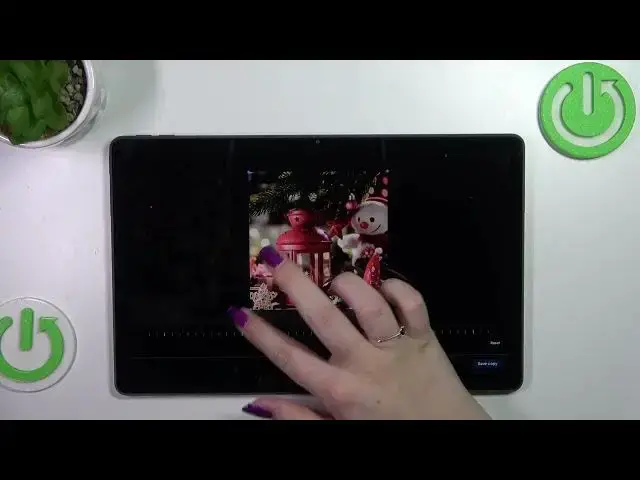
like to use and tap on it. And got it. And here from this step we can adjust the
0:59
position of the photo or the size of this highlighted square. We can simply
1:05
zoom it in or out, I mean the photo, or make it smaller. And thanks to this we
1:11
can actually decide what we will see after saving the whole contact because basically this area is responsible for it. Here you can rotate the picture, it's
1:19
up to you how you want to set it and if you are happy with your choice just tap
1:22
on save copy. As you can see the photo has been immediately applied to the
1:27
circle with the camera icon so remember to tap on save in the right upper corner
1:31
It's very important. And as you can see this is how our how our contact will
1:37
look like after saving and you will be able to see this photo on the contact
1:42
list. So basically that's all. This is how to add the photo to your contact in your
1:46
Lenovo Tab P11 Plus. Thank you so much for watching. I hope that this video was
1:51
helpful and if it was please hit the subscribe button and leave the thumbs up