0:00
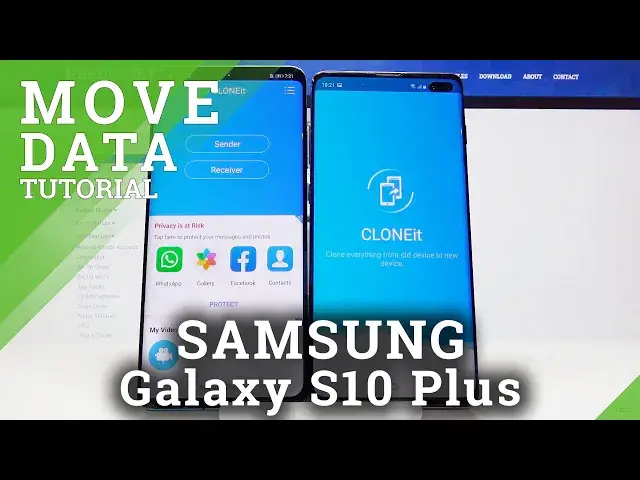
Welcome guys, if you want to transfer data from Android smartphone to your Samsung Galaxy
0:10
S10 Plus, for the first you have to get application to transfer data
0:14
And let's go for the Play Store, tap on search poll and get application name clone it
0:21
I'm going to use this one because it's totally free and really easy to use
0:27
So you don't have to pay for it, it's totally free. On the second smartphone you have to do the same
0:34
When you got both apps, just open them. If you got any permissions, any requires for the permissions you have to click allow all
0:43
the time. So you agree, click sender on the Android phone, tap set, turn on location, go back
0:52
and click sender one more time. On S10 Plus you have to tap on the receiver, click allow and here we have also turn on location
1:02
As you can see on the Samsung we are back with the settings instead of the application
1:08
clone it. So click on the background apps and right now select this application with the clone
1:13
it icon. Click receiver, tap search again and right now we have to wait until the S10 Plus find
1:21
our Android phone and here it is, so tap on this Android share icon
1:28
Right now we have two ways to connect, we can scan the QR code but also we can input
1:32
this password manually. So we have to pick your way, I'm going to scan the code, so tap, grab your phone, put
1:40
it into the frame of the QR code
1:50
Right now they are connecting and we have to accept the request, so click ok and if
1:56
you want to send all of data you have to select all icons, then tap start
2:02
But if you want to get some details you are going on the bottom, select details and go
2:09
for the thing that you want to send, I will show you on the music and I take this to songs
2:15
click start, ok and as you can see it's finished. So this is how it looks, thank you guys for watching, leave thumbs ups, comments and subscribe
2:26
to our channel. See ya