0:00
Hi everyone, in front of me I've got a CAT S40 and let me share with you how to change
0:11
date and time on this device. So first of all let's enter the settings
0:17
Now we have to scroll down to the system section and tap on date and time which should be on
0:21
the very first position. And as you can see the date, time and time zone options are inactive
0:27
That is because we've got the automatic date, time and time zone. Of course in order to set it manually we have to turn off those options just by tapping
0:34
on the switchers. Now let's tap on set date and as you can see from this calendar we can pick the date we
0:41
want to use. So let me pick this one for example and tap on OK
0:46
And as you can see it immediately changes. The same situation with the time
0:50
After tapping on it we will see this clock and from it we can choose the date we want
0:55
to use. So for example 9 o'clock, 9.02 and tap on OK
1:01
And as you can see it is immediately applied. What's more it should be visible on the status bar also and after a while it appears here
1:11
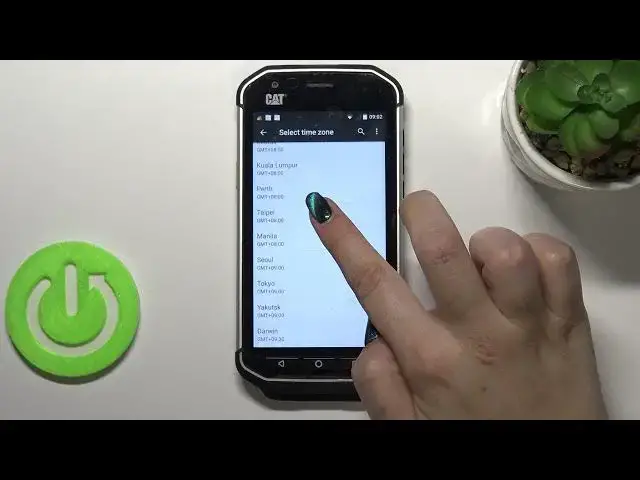
Let's pick the time zone also. Let's tap on it. At least try
1:30
OK as you can see this device is struggling a little bit with the time zone
1:37
And as you can see after tapping on the time zone we will be transferred to the full list
1:42
of all available ones from which we can choose. So all you have to do in order to change the time zone is to simply tap on the one you
1:49
would like to set. So let me pick Taipei for example. Let's tap on it and as you can see we just got back and probably we have to wait to see
1:59
the changes. I hope so at least. OK so let's wait for that
2:08
Under those options we've got also the clock format option so we can use 24 hour format
2:14
or 12 hour format and let me focus a little bit on the time zone again because as you
2:20
can see we've got the time change. You have to remember about that that if you will change the time zone that time will also
2:28
change according to it. So it should be 9 o'clock but it is 4 o'clock p.m
2:34
So that's why we. It is because we changed the time zone
2:38
So let's let me focus on the clock format. So as I said we can use 24 hour format just like now or 12 hour format just by turning
2:46
off this option. So I'm not really sure. As you can see it immediately changes fortunately
2:55
What's more we can choose the date format also after tapping on it we will be able to
2:59
pick the one we like the most. So let's wait a second
3:04
And as you can see here we've got four different options from which you can choose. You've got the regional option right now applied but you can decide if you want to
3:11
display the month first, the day first or even a year. So all you have to do is to simply tap on the one you would like to use and it will
3:19
be immediately applied. So actually this is it. This is how to manually set date and time in your CAD S40
3:26
Of course you can get back to all previous settings. Just tap on this 24 hour format and tap on those buttons, those switches to use a network
3:36
provided time and time zone. Okay. So actually this is it. This is how to change date and time in your CAD S40
3:46
Thank you so much for watching. I hope that this video was helpful and if it was please hit the subscribe button and