0:00
Welcome! In front of me is a ZTE Blade 10 and today I'll show you how to enable and
0:11
also set up the portable hotspot. When we get started let's pull down the
0:16
notification panel, expand it and find the hotspot toggle. There it is for me. So
0:24
once you find it you want to hold the toggle. This will take us to the settings
0:28
and from here you're gonna tap on Wi-Fi hotspot and then simply customize it
0:34
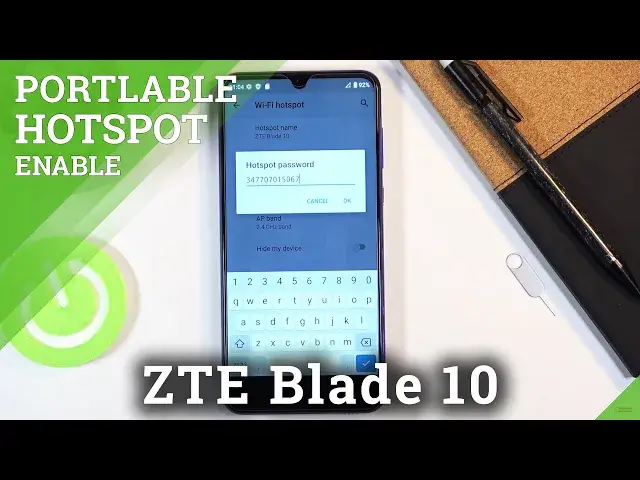
So configure and in here we'll have things like hotspot password. So by default
0:39
it's just gonna be some random numbers and letters so we can remove this one
0:43
and set our own. I'm gonna make it fairly simple. Now it does need to have eight
0:48
characters in length and once it does you can confirm it. Then we have the AP
0:52
band. We have the option between 2.4 gigahertz and 5 gigahertz. Now I would
0:59
suggest you to try at least the 5 gigahertz one. Now this is something
1:02
completely else. Unlike 5G phones this is strictly for Wi-Fi and not every
1:08
phone will support it. The older devices from like probably 2015 and back might
1:15
not but majority of the devices nowadays do support it. So you can tap on it and if
1:23
your phone doesn't support it you just simply won't see the Wi-Fi in the list
1:27
that you're looking for that you will create with this phone. Which if that is
1:32
the case simply go back here and change it to 2.4 instead. And at the top
1:38
we do have a hotspot name which by default it's set to the device's name
1:42
which well it is ZTE Blade 10 but you can change it to something else. Now the
1:48
significance of this is just when you open up Wi-Fi list you will be looking
1:53
for Wi-Fi name ZTE Blade 10 or if you change it you will be looking for
1:58
whatever else you changed it to. So once that is all set you can simply
2:03
leave this and then pull down the notification once more, find the toggle
2:08
and simply tap on it and this will turn it on. Now it does turn off Wi-Fi because
2:13
it does use Wi-Fi as a hotspot because of it so you will be going through a
2:18
mobile data. And that is how you would enable it. So now people can connect to
2:24
your hotspot and once you're done with it make sure you toggle it off because
2:28
otherwise it will be consuming battery unnecessarily. So simply tap on it again
2:33
to turn it off. And if you found this video helpful don't forget to hit like
2:39
subscribe and thanks for watching