0:01
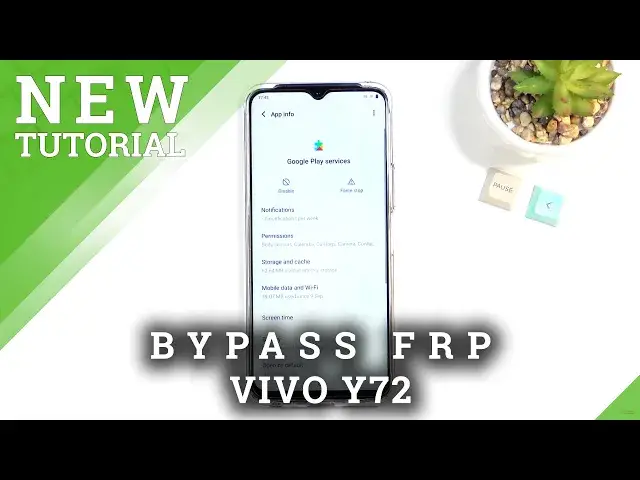
M-Phenomenon is a Vivo Y72 and today I'll show you how to bypass the Google verification
0:13
on this phone. Now, obviously you can see that the phone right here is locked and I could unlock it
0:18
either using the pattern or Google account. And yeah, those are the two ways you can unlock it
0:25
So to get past this, we're going to back out to the Wi-Fi connection page and I'm going
0:29
to start off by selecting CO Wi-Fi Network System. Let's see. And then scroll all the way down to Add New Network
0:41
And from here, you should have a microphone icon. Once you tap on it, make sure you tap on Not Allow but Deny
0:51
Let's do that again. And from here, you can see there's a pop-up
1:00
Here you want to select Allow, which takes us to basically apps right here
1:07
So we want to now go into Permissions. From here, select Search and we're going to search for..
1:21
Let me make sure I'm doing this correctly
1:33
Okay, so we're going to write Settings
1:47
And then scroll down until you see the Settings application. So the last one, you can see there's the icon for Settings
1:55
You want to click on it. And from here, once you click on it, you're going to select Open
2:03
I'm going to scroll down to Apps and Notifications, App Info, tap on the three dots and then select
2:13
Show System. And you want to now disable or force stop the Android setup
2:19
So force stop, okay. Go back and scroll down to... I'll quickly check Google Play Services
2:33
So there we go, Google Play Services. And you want to again select Force Stop
2:43
Actually, we can start with Disable, then Force Stop. And once you have done so, you want to back out
2:57
Select Next. Don't copy
3:07
So now we're going to get back out. And then from here, we're going to set up an offline
3:14
And again, you can now finish up the setup
3:23
Now even though right now we have access to the home screen, the device is still locked
3:28
So what you need to do is navigate into your Settings, scroll down to System, Reset Options
3:36
and then select Factory Data Reset or Delete All Data Factory Reset
3:41
Select Erase All Data. And once you click on that the second time, it will perform a factory reset of the device
3:47
Basically formatting your phone and bringing you back to the setup screen
3:53
But at that point, the device will be fully unlocked, so you can set up your device however
3:57
you like. Now I'm not going to go through the process on camera, just because to be completely honest
4:02
there is not much to show you after this. It's going to be about three minutes of resetting and then just a quick setup where I get to
4:10
skip basically everything that I can. But like I mentioned, the device is fully unlocked at that point, so you can set it
4:15
up however you like. Anyway, if you found this video helpful, don't forget to hit like, subscribe, and thanks