Up next in 10

Camera Top Tricks for iPhone 12 Pro – Best Camera Options / Cool Camera Features
Apr 25, 2024

Read more info about iPhone 12 Pro:
https://www.hardreset.info/devices/apple/apple-iphone-12-pro/
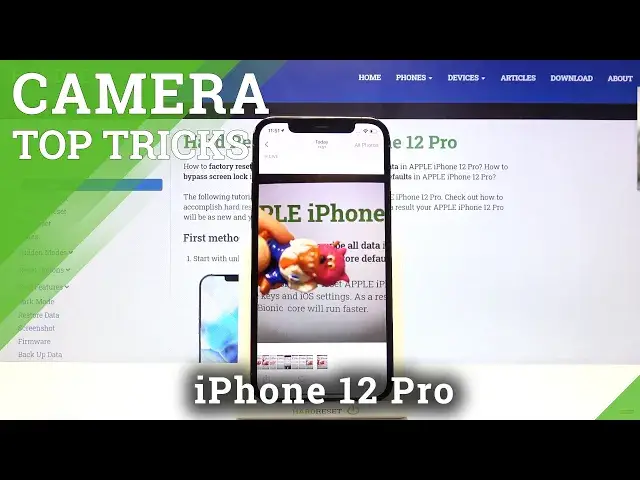
Come along with the uploaded tutorial, where we show you the best options for iPhone 12 Pro camera. If you wish to use the best camera options of your iPhone, learn the attached instructions and make the usage of the iPhone camera much satisfactory and effective. Let’s follow the presented tricks and use them to cooperate with the iPhone camera better. Check out all of the possibilities that the camera in iPhone 12 Pro has. Visit our HardReset.info YT channel and discover many useful tutorials for iPhone 12 Pro.
How to use Camera iPhone 12 Pro? How to find the best options of Camera iPhone 12 Pro? How to make usage of Camera iPhone 12 Pro? How to open Camera settings iPhone 12 Pro? How to use top and tricks for iPhone 12 Pro Camera?
Follow us on Instagram ► https://www.instagram.com/hardreset.info
Like us on Facebook ► https://www.facebook.com/hardresetinfo/
Tweet us on Twitter ► https://twitter.com/HardResetI
Show More Show Less View Video Transcript
0:00
Welcome here I've got iPhone 12 Pro and I'm gonna show you the top tricks of it's camera
0:11
so at first we have to tap on a camera button here to open it and for now we are in the standard photo mode
0:17
let's see what we've got here let me start with this settings bar here we can change the modes of this camera we have the time lapse mode
0:25
slow motion video standard photo power straight and panoramic So this is a lot. I suggest you to making experiments with that and just have a good fun
0:35
Now let me stay on the standard photo mode and here let's start by tapping on the screen anywhere like that
0:41
As you can see we get access to this square and this is connected with this sun icon
0:47
So the square is the focusing we can focus anywhere we need at our picture
0:52
When we tap a little bit longer on the sun, we get access to some extra slider as you can see
0:58
And this is the exposure compens. so we can manage the light of our picture
1:03
By going up, we can make it more bright and by going down, we can make it more dark
1:09
And of course, there's no problem to go back to auto-experture compensation. We can do it by just simply tapping again anywhere at the screen
1:16
and it goes back to the auto. Now let's have a look at these buttons
1:20
Here we can change the lenses of this camera. Now we are on the ultra-white lens at the center
1:25
We have the standard and we can also get closer. As you can see this is connected with zoom so for now let me show you how to use zoom
1:33
We can do it by using the fingers like that and get closer to the subject and also go back
1:39
We can also tap on these buttons once again a little bit longer
1:44
And as you can see we have access to this extra slider I think when we use this we can be more precisely at our zoom
1:52
So this is how to use this and now let's stay on the standard lens and let's move
1:59
to this settings bar here. Let me start from the left corner
2:03
By just one tap here we can turn on and another tap to turn off the camera flash
2:08
And from the right here we can turn on and turn off the live photo So let me focus on this for a while When we have this turn it on and when we take a picture we get at the same time for things
2:24
So this is really cool because we have two photos and two short clips
2:29
Let me show you how it works by taking a picture. To see the photo let's go to the left corner at the bottom to this button
2:37
When we tap on it, we get quick access. to the gallery so this is the basic live photo when we slide down we get access to the effects
2:46
and here we have the loop video so this is one of short clips here and another here is the bounce
2:57
and when we slide again we get access also to the long exposure picture and this is how it works here
3:04
so we have as i said four in one two pictures and two short clips
3:12
Now let's go back to the camera and let's have a look at this button at the center
3:17
When we tap on it we get access to more setting switch appear here
3:21
As you can see from the left we have also the flash and the live photo icons
3:26
So here we have more advanced options. We can turn on the flash on the auto so the camera recognizes when it's needed
3:34
We can turn it on every time we take a picture. Now this one button here in the left corner is at the yellow color
3:42
So here we have some short access to the flash and we can turn it off also easily
3:48
So it changes also here. And with the live photo we have also the same thing
3:53
We have the live auto we can turn it on every time we take a picture and also we can turn it off
4:00
So these two buttons have some shorts here and here. Now let's move to this one
4:06
we have the aspect ratio of this camera. Now we are on the 4 and 3 ratio
4:13
We can pick also the square. The background now has changed to this square one
4:18
And here we can also pick 16 to 9. So this is the longer one
4:22
Of course by tapping on this button once again we can easily go back to 4 and 3 Now let move to this button here we have also access to the exposure compensation slider so we can do it like in this sun icon here
4:38
so we can also manage the light of our picture. So let's stay on the auto now
4:44
and let's move to this button here we have the camera timer
4:48
so we can adjust the delay of taking picture We can pick from 3 or 10 seconds
4:55
Let me pick 3 seconds to show you how it works. Also it appears here as you can see
5:00
So this is short information that we have this turnet on. On 3 seconds, let me take a picture
5:06
We have the countdown. And now the picture was taken with 3 seconds of delay
5:13
Now let me give this turnet off. Let's move to this button here
5:17
And here we have access to the filters. We can make our picture
5:23
just more beautiful before we take it now we can pick whatever we want and need
5:29
Like that. So let's stay on the original one and now let me stay on this and let's go out from the camera. Let's pick the settings
5:41
Here we have to slide down and pick the camera and here we have some more advanced settings about the camera. As you can see, this is
5:53
how they look like. Let me show a few of them. Let's start with formats
5:57
When we tap on it, we can change the quality of our pictures from high efficiency, the higher
6:02
one to most compatible to lower one. So this is how to use this. Let's go back to the settings
6:08
We can also here pick the quality of our video. As you can see, this is how to change this
6:18
And also here we can change the speed of the slow motion video for
6:23
from 120 to 240. And now let's have a look at this option
6:30
Use volume up for barst. By tapping on this button we can turn it on and turn it off
6:37
And when we have this turn it on we can use the volume up key which is here at this device to take bars the photos so we can take a series of pictures
6:48
Let's go back to the camera, let me show you how it works, and let me try to use this button
6:54
When we tap on it a little bit longer, as you can see we get the series of picture
6:59
So this is how to use this and when we tap on it once we can take one picture
7:05
Now let's go back to this settings. So we are again in the advanced camera settings
7:12
Let's have a look at scan cure codes option. By using this button we can turn it off and turn it on like that
7:19
But I suggest you to keep this turn it on because when you have this you can scan your codes
7:24
by putting them inside the camera so you don't need any other app to do it and this is really easy
7:31
Now let's have a look at the composition settings. Let's start with the grid option here
7:37
By using this button we can turn on the camera grid lines and another tab to turn them off
7:42
So let me keep this turn it on. Now let's go again to the camera to see them
7:47
And it shows us these lines. This is useful. For example, when we want to use the rule of Verdeen photography or making experiments with composition
7:55
Also remember that these lines are not visible at the real pictures
7:59
So when I take a photo and when I go again to the gallery to see the photo week, we can see the photo
8:03
so we can't see the grid lines added. So these lines are only to help us taking better photos
8:09
Of course when we don't need this we can easily go back to the settings here and use this button to turn them off
8:16
So for now as you can see they are turned off. So they have gone here
8:22
Now let's have a look again on this settings in the camera
8:26
Here we have also one cool option. So at the mirror front camera when we use this button we can mirror
8:33
our pictures when we take a selfie, so by just one tap here to turn it off and turn it on like that
8:41
And that's all, thanks for watching, subscribe by our channel and leave the thumbs up
Consumer Electronics
Camera & Photo Equipment
Photo & Video Sharing
Photo & Image Sharing
Science
Other
Event & Studio Photography