0:00
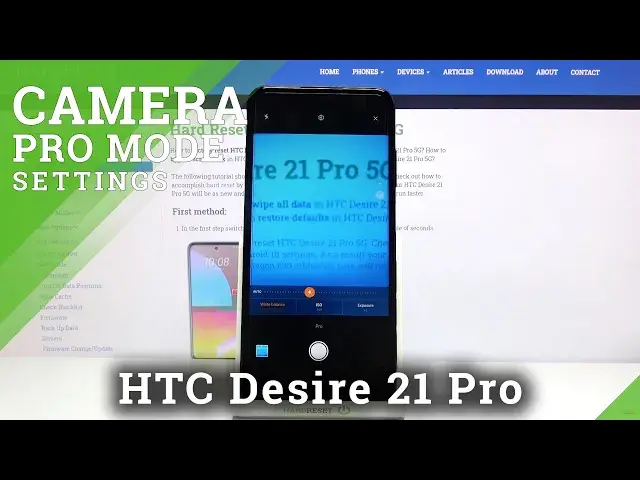
Welcome! Here I've got HTC Desire 21 Pro 5G and I'm gonna show you how to use the camera
0:12
pro mode at this device. So at first we have to tap on the camera button to open it and
0:17
for now we are in the standard photo mode. From here let's go to the right corner to
0:22
this button. When we pick it we get access to more modes of this camera and one of these
0:27
is the pro mode so let's pick it. Here we are, now we can start using this and this
0:33
mode gives us possibilities to choose some shooting parameters by ourself. This is useful
0:38
when we want to learn photographic skills or making experiments with photography. So
0:42
let me start with this settings bar. Let's go from the left. As you can see the first
0:47
one option here is the white balance so here we can control the temperature of our picture
0:53
By using this slider we can manage the balance between the blue and the orange light as you
0:59
can see. We have also the small icons above this slider that suggest us which light is
1:06
good for which conditions we have when we want to take a picture. So here we have the
1:11
tungsten light, then the daylight, white fluorescent light and the cloudy light. At the beginning
1:18
of this slider are auto settings so there's no problem to go back and start using this
1:23
from the beginning. Now let's move to this button at the center with ISO. Here we can
1:28
control camera's sensitivity to light and by using this slider we can make it less sensitive
1:36
from 100. By going to the right we go to more sensitivity to 1 in 6000 of it so I think
1:43
this spectrum is really wide like this kind of camera. And of course at the beginning
1:48
we have auto settings so now we are again on auto ISO. And the last one thing here is
1:54
the exposure compensation option so here we can manage the light of our picture. At the
2:00
center we have zero parameter and by going to the right we can make our picture more
2:05
bright by going to the left we can make it more dark. So this is how to use this here
2:12
and now let me use this settings to take a picture so let me give more light here
2:19
more sensitivity and white balance maybe here. To see the photo let's move to the left to
2:27
this button that follows us straight to the gallery and this is how it looks like. And
2:32
that's all, thanks for watching, subscribe our channel and leave the thumbs up. More videos at www.subsedit.com