0:00
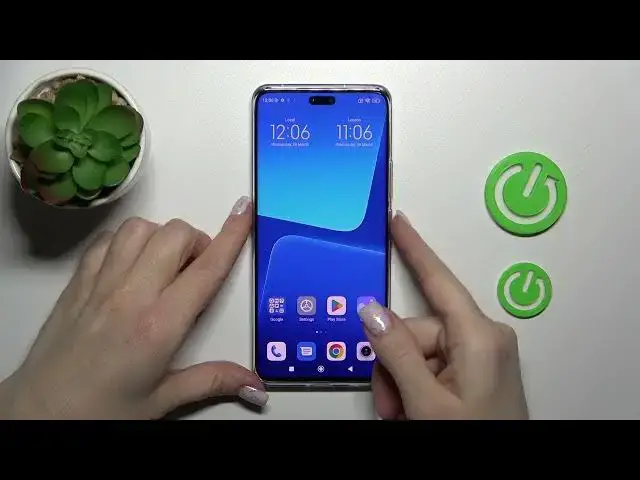
Hi! Today in Friday Phoenix I am with Heading Light and I'll show you how to change lockscreen wallpaper on this device
0:11
So to do that we should first open the settings Settings application
0:22
And then tap to Wallpaper section So here we'll see the wallpapers, this is the online wallpapers, you can use them if you are connected to the internet, to mobile data or to the Wi-Fi
0:34
Also if you want to use the default wallpapers or photos from your device gallery you should switch wallpapers to profile, tap here to Wallpapers section
0:42
And here you'll see the default wallpapers on your device Also you can use here to this plus icon, tap below and select the photo from your device gallery from previously taken photos on your device camera or downloaded from the internet or also the Google photos and just another photos
1:02
For example let's use one from this available wallpapers You can tap here to preview
1:09
After that just click to apply, set as lockscreen If you want to turn on the wallpaper carousel you can do that, you can click here to agree or to don't agree, I just want to set only this wallpaper
1:22
So we can see the message that the lockscreen wallpaper applied successfully, let's check it
1:27
And as you can see we just successfully changed it Also we get one more way how we can do that, just hold for a while the empty space on your home screen, then on the left hand corner tap the wallpaper icon
1:38
And by the same way I'll just now use one from this online wallpapers
1:44
For example I'll use this one Click apply, set as lockscreen, carousel, don't agree, lockscreen wallpaper applied successfully
1:56
So that's it, thank you for watching and if you find this video helpful don't forget to leave a like, comment and to subscribe our channel
2:08
Thank you for watching