0:00
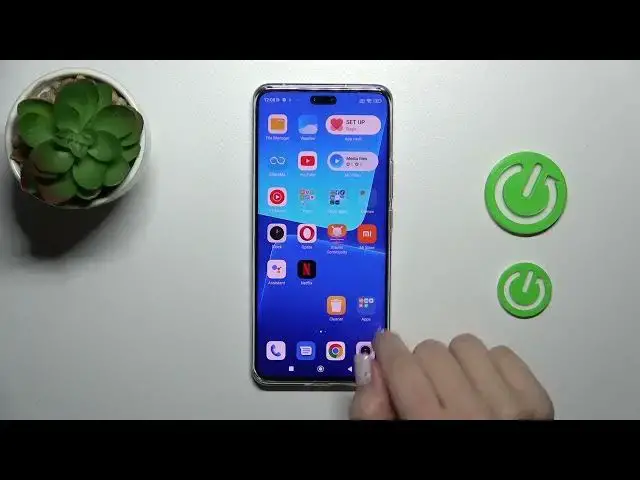
Hi, this is UnifortyFix AMV13 Lite and I'll show you how to create homescreen folders on this device
0:10
So just to create a new homescreen folder you should hold for a while the
0:15
Application and drag this up to another one and by this way we just see that we successfully created the new homescreen folder
0:22
By the same way we can add here more application just by press
0:27
Unhold and drag the app to the folder also, I get well and just
0:35
We could change the Name of the folder to rename it just click once on the name and enter the new one apps for example
0:44
Tap the home button and we can see that we're just successful and renamed it to move this folder here on the screen or between
0:51
The screens we should just hold it and drag it Also, we could create the new screens with the help of the folders
0:57
That's also not a problem And if you want to remove the application from here
1:02
You should just hold it and drag it to the home screen if you want to stay with this application on the home screen
1:08
But if you want to remove it from the folder and from the home screen, just hold it
1:12
And click to remove but you'll remove only the thumbs from the home screen so thumbs you will see
1:19
After that in the system apps So also we can create all of them
1:23
We can hold it and tap to edit folder and just watch the size of our folder to enlarge it
1:27
Or just to use the resize button And we can also create a new one
1:31
And we can also create a new one And we can also create a new one
1:35
And we can also create a new one And we can also create a new one
1:39
And we can also create a new one And just use the regular size
1:43
And just use the regular size So that's it, thank you for watching
1:47
And if you find this video helpful Don't forget to leave a like, comment and to subscribe our channel
1:51
Don't forget to leave a like, comment and to subscribe our channel