0:00
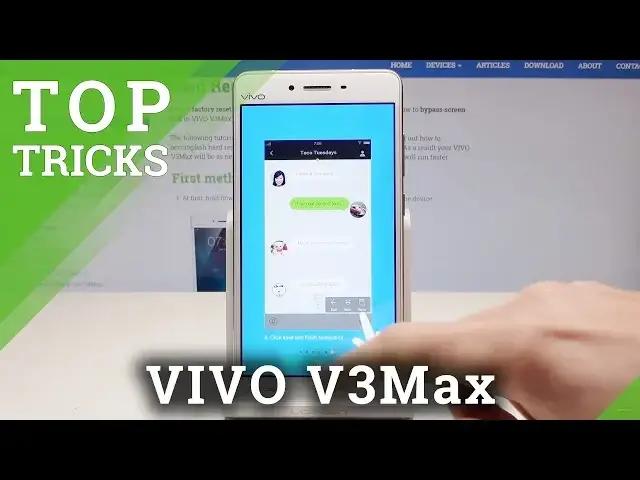
Here I have Vivo V3 Max, let me show you top tricks on the following device
0:11
So let's start with the first one, so let me show you the S-Capture. Let's open the screen and let's open the screen that you want to capture
0:18
For example in my case it would be the list of settings. Now if you would like to use for example the long screenshot, let's use the down bar, choose
0:26
S-Capture right here. And as you can see you can for example use screen recording, you can use funny screenshot
0:33
or long screenshot. Let me use the long screenshot. Here you got the tutorial, if this is your first time let me scroll this tutorial and
0:41
tap ok. Now you can use the long screenshot by using the next key and you just save this list of
0:46
screen and tap save. That's it, you just save this list of screens
0:52
So that's it. This is the long screenshot. Now let me go to the next trick, let me show you the iManager
1:00
The iManager is one of the most powerful app on this device. Let's open the iManager
1:04
Here the device is scanning itself and here you can for example use the phone clean and
1:11
you can clean the junk files. It's really good to do it to just refresh your device and to use it in a better way
1:25
The device is scanning again, so let's wait a few seconds
1:37
Alright it's almost done. Here you've got the progress bar. Now you can clean up those files
1:43
Let me do it, let me clean the junk files. The device is removing all the trash
1:49
Let's tap done. That's what I need to do. Here you can use also the data monitor, you can use the privacy app or power manager
1:56
Let's go back and let's go for the next trick. So let me show you shake to turn the flashlight
2:01
Let's tap settings. Here you need to scroll down and choose here more settings
2:07
Then from the following options you need to, sorry let's go back and here from the following
2:12
options let's choose smart motion right here. So let's tap here the smart motion and here you can use shake to turn on the flashlight
2:20
Now if you would like to shake to turn on the flashlight you need to lock your device
2:24
Just shake it and the flashlight should pop up. Let me show you again
2:32
The flashlight is activated. You can use the power key to disable the flashlight and that's it
2:37
Alright so let's go for the next trick. Let me show you the smart wake
2:41
Here also from smart motion let's choose smart wake and you can use here slide upwards to
2:46
unlock, slide downwards to take a photo or you can for example draw some letters
2:51
It's really cool. For example let's draw C to wake the dialer
2:54
Let me show you. Just draw C and you just unlock the dialer
2:58
Let me show you again. Let's lock your device, draw C and you should open the dialer
3:04
That's it. Let's go for the next trick. Let me show you the smart click
3:08
So let's here choose smart click from settings and here you can for example use volume down
3:14
to turn on the flashlight to record the video, to open camera or to open Facebook for example
3:20
or enable some other app. Let me for example open camera. So now if you lock your device and press the volume down for a few seconds you should open
3:28
the camera. That's it. The camera is turning on. So everything went well
3:32
Thank you for watching. Please subscribe our channel, leave thumbs up under the video